Journalwright Studio

Design a journal.
Print it as a book.

A calm toolkit for making physical journals and planners that fit the way you live. Arrange the pages in a visual editor, get print-ready PDFs for Amazon KDP, and keep an e-ink reader in your pocket if you want one.

The demo uses sample data only. Nothing is saved to a server.

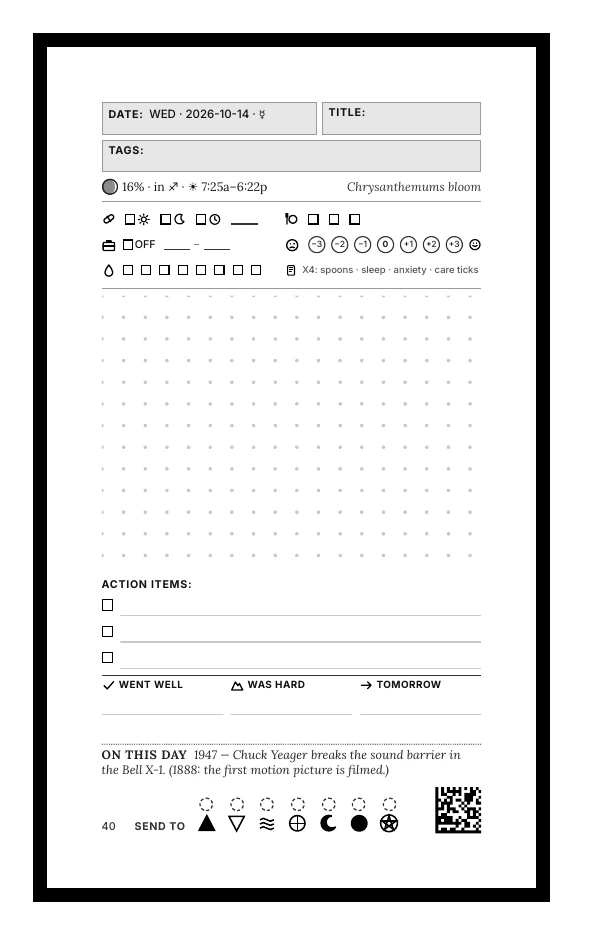
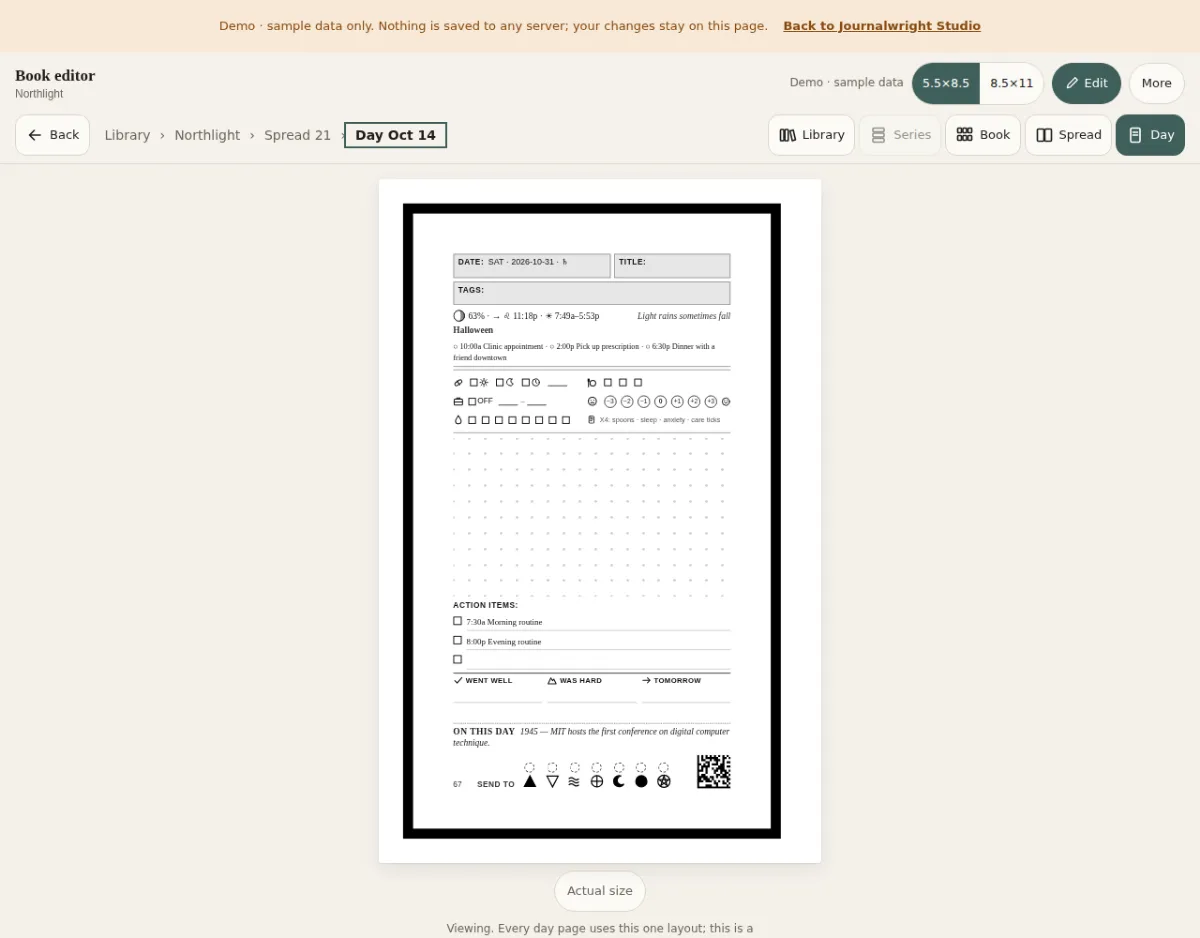
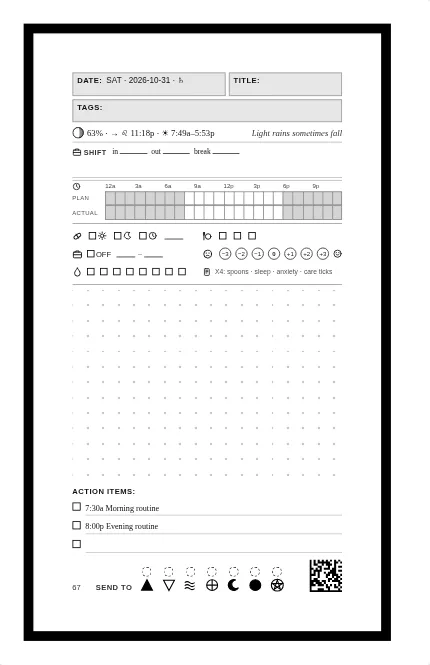
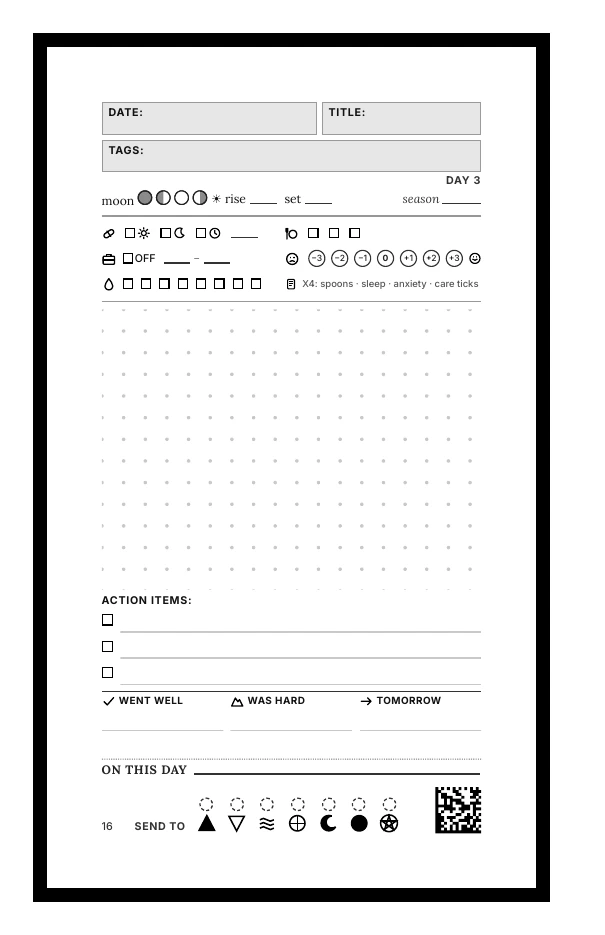
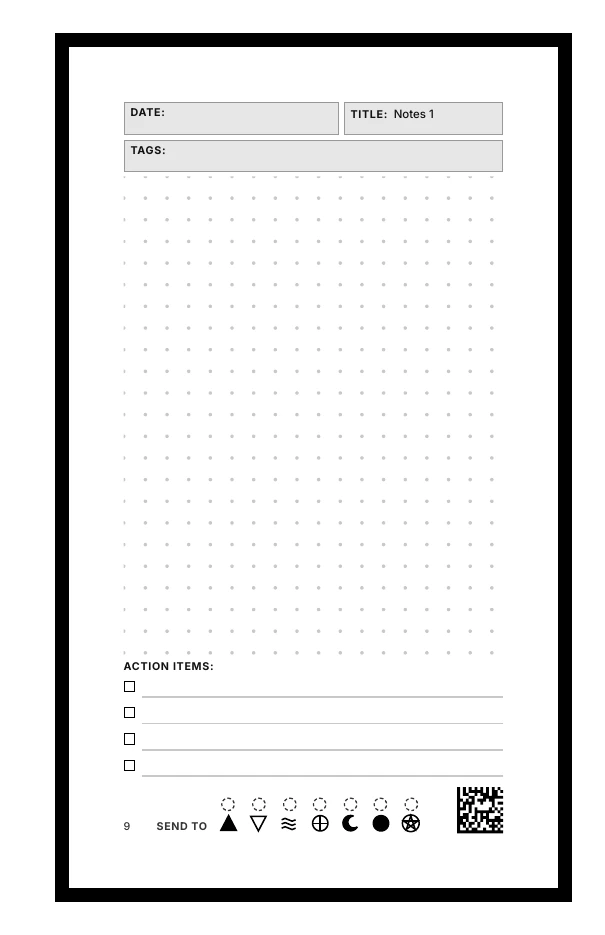
A printed day page from the sample book: date, title and tags at the top, a row of check-in boxes, a dotted writing area, action items, and a scan strip at the bottom.

What you can do today

Everything here is built and on the main branch. The screenshots are from the editor demo with sample data only.

The three layersBlocks are arranged into a page on a grid, and pages are put in order to make a book. 3 Bookpages in order: a month, a season, a year, undated 2 Pageblocks placed on a grid, one layout for every day 1 Blockscheck-ins, notes, time lines, trackers, writing space
Three layers: blocks make a page, pages make a book.

Block editor

Arrange a day page from blocks. See it at real size while you work, and get a warning before a page runs out of room.

  • 70+ palette items: check-ins, time lines, trackers, thought records, brain dump, sketch box and one-click presets.
  • Therapy, body and planning blocks, each with options and sizes.
  • A grid mode: blocks span several columns and rows, with overlap and minimum-size checks that explain themselves.

Try it: edit a day page

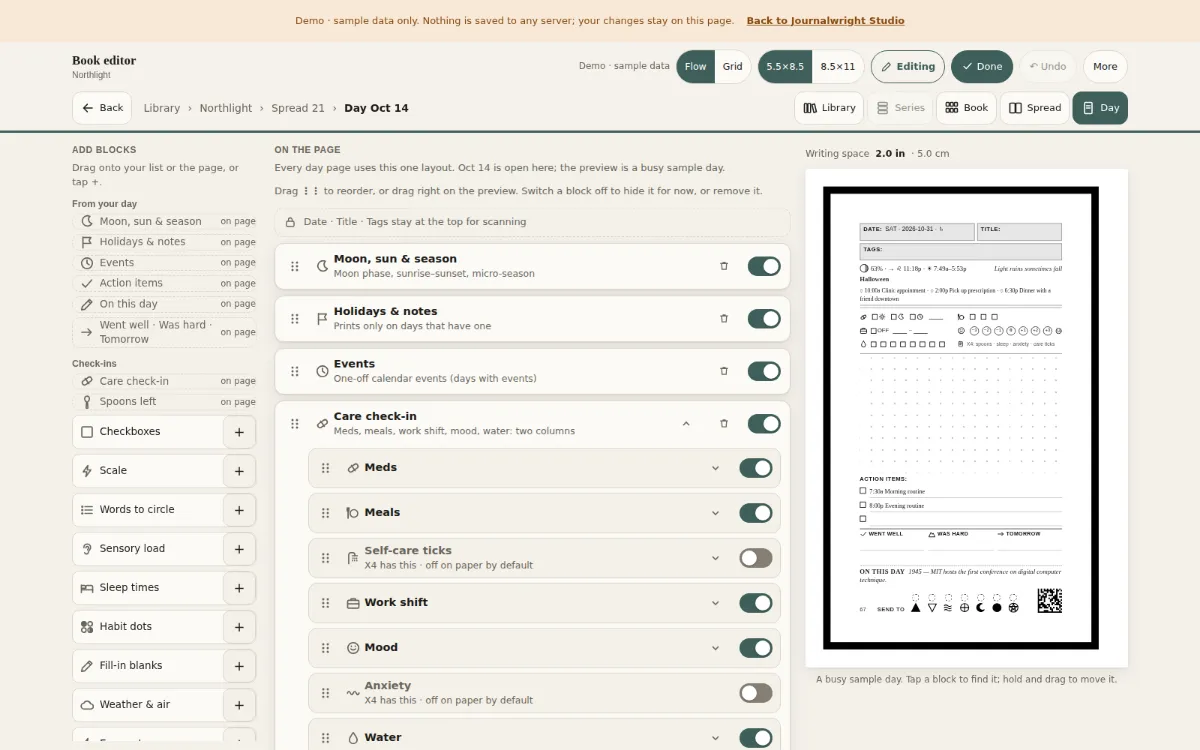
The day page in edit mode: the palette of blocks on the left, the list of blocks on the page in the middle, and the live page preview on the right.
Edit mode: the palette, the block list and the live page.
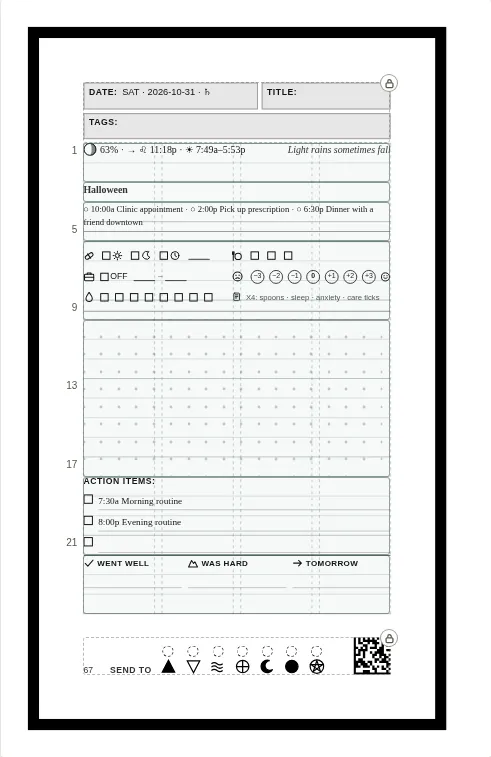
The page grid: the preview with its rows and columns drawn over it. Blocks such as the moon and sky line span four columns and two rows.
Grid mode: the moon and sky line spans four columns.
A page built from blocks on a gridA page outline with four columns. A wide block spans all four columns, two blocks sit side by side, a tall writing block fills the middle, a wide block follows, and a dashed scan strip is fixed at the bottom. Moon and sky 4 x 1Habits 2 x 1Mood 2 x 1Writing space 4 x 3Action items 4 x 1Scan strip (fixed) 4 columnsblocks spancolumns and rowsfixed scan zone
A page is blocks on a grid; the scan zones stay fixed.

Book, spread and day

The editor opens on the whole book and zooms one step at a time. Pages open for viewing; the palette appears only when you press Edit.

  • Every page in spreads, with page ids, jump-to-page, a legend and a breadcrumb that always works.
  • View mode is clean and read-only. Edit and Done switch the tools on and off.
  • Switch between 5.5 x 8.5 and 8.5 x 11 and see the same pages at the new size.

Try it: open the book

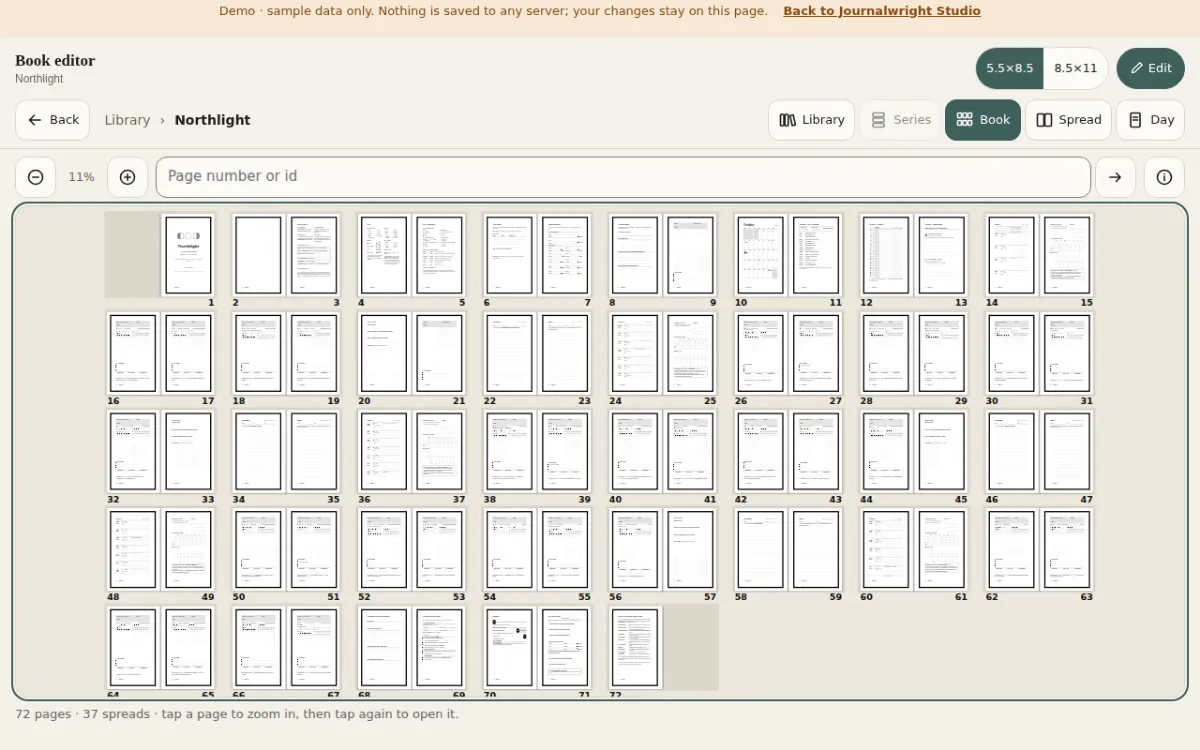
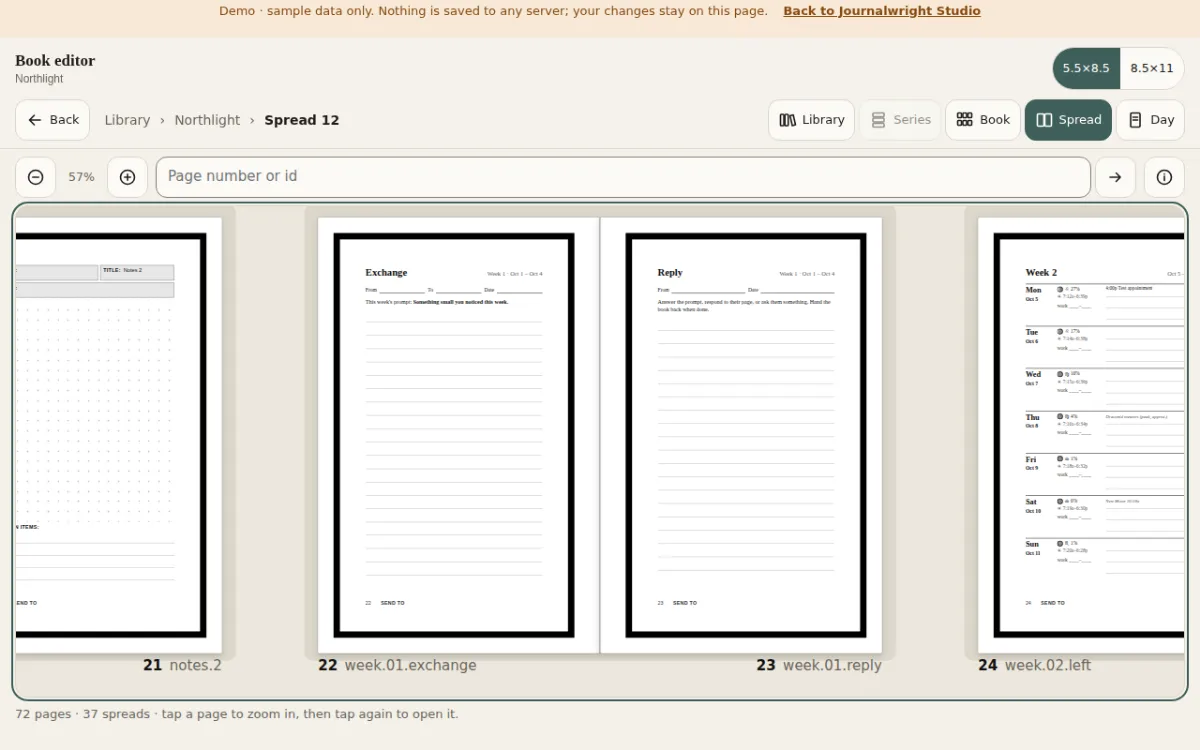
The Book view: all 72 pages of the sample book laid out in facing spreads, with a page-number box, a zoom control and a legend button.
The Book view: 72 pages in 37 spreads.
The Spread view: two facing pages, an Exchange page and a Reply page, at reading size.
The Spread view: two facing pages.
A day page in view mode: only the page, clean and read-only, with an Edit button at the top right.
A day page in view mode.
Book, spread, dayThree steps of one zoom. The book shows every page as a small card, the spread shows two facing pages, and the day shows one page at full size. BookSpreadDay all pagestwo facing pagesedit one page
One continuous zoom.

Library and series

Every book gets a title of your own. Keep several books in one project, and group them in a series that shares defaults.

  • A shelf of covers: books, series and their order.
  • Series share a book length, cover and front matter; each book can still differ.
  • Zoom from library to series to book to spread to page.

Try it: browse the library

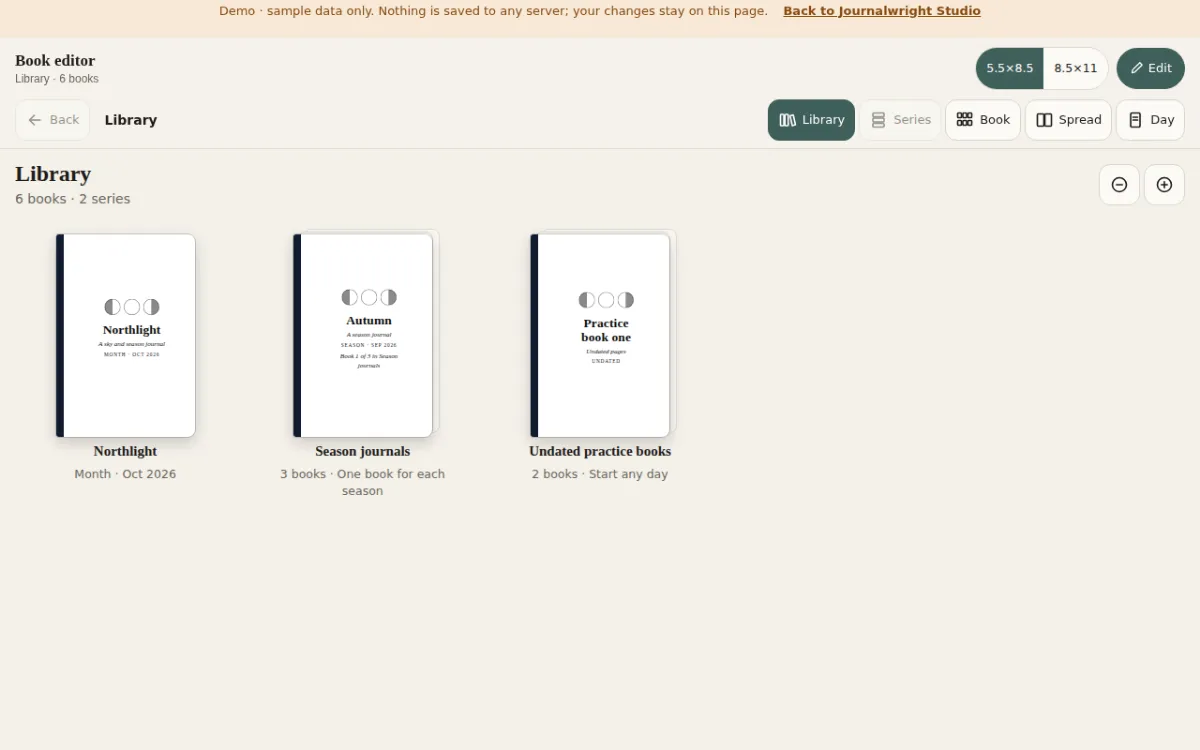
The Library: a shelf with the book Northlight, a series of season journals and a series of undated practice books, each with its own title.
The Library shelf.
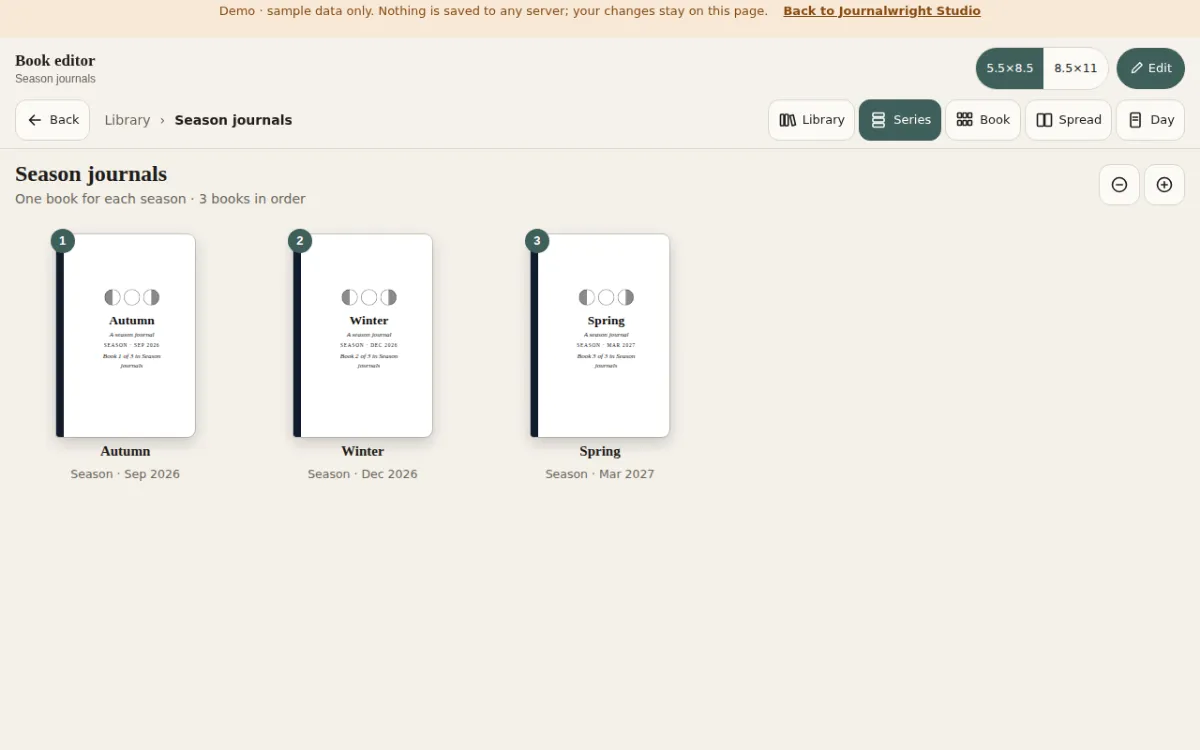
A series shelf: three season journals that share defaults, shown as covers in order.
A series of three season journals.

Unique pages and scan codes

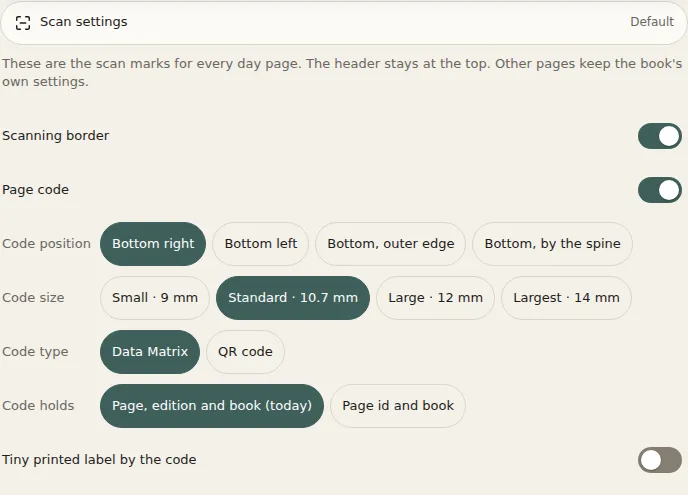
Every page has its own id and scan code, and the build checks that none repeat, inside a book or across books. You decide how the scan marks look.

  • Send-to block, scanning border on or off, and the matrix code: position, size, format and an optional tiny label.
  • The header, the 9 pt frame and the code stay in fixed zones so every page can be identified.

Try it: open Scan settings

The Scan settings sheet: switches for the send-to strip and the scanning border, and choices for the matrix code position, size and format.
The Scan settings sheet.

Print-ready output, scopes and volumes

KDP interiors and covers in 5.5 x 8.5 and 8.5 x 11, with an overflow check on every page and no Type 3 fonts.

  • A book can be a month, quarter, season, half-year, year, a custom range, or undated.
  • Past the paperback limit it splits itself into balanced volumes, each with its own cover, codes and manifest.
  • Profiles: one file says who and where: names, time zone, day start, trim and modules.
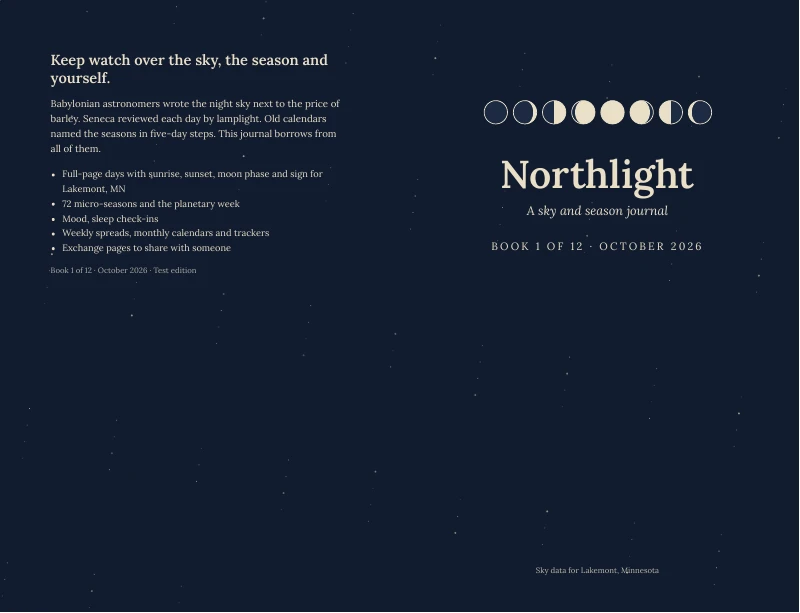
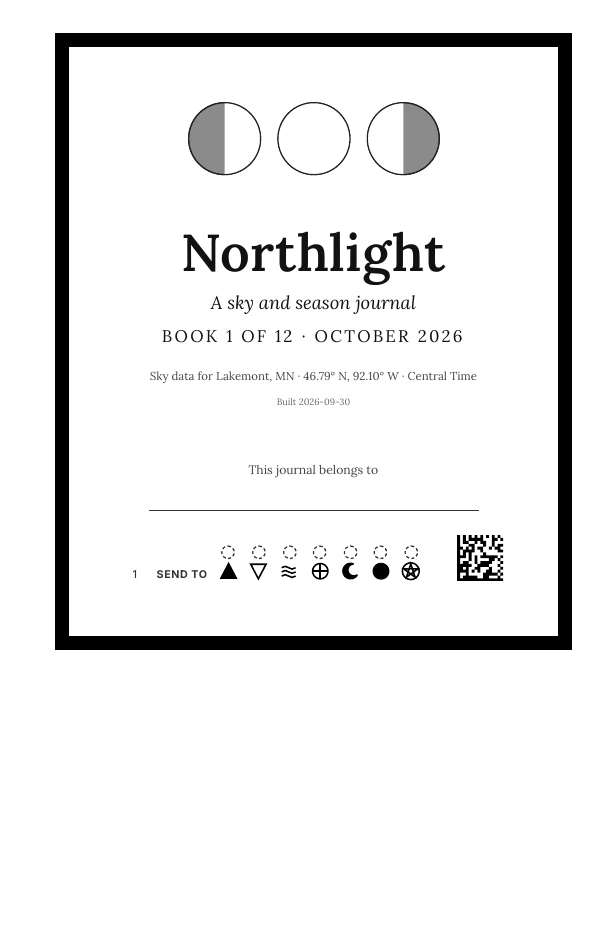
A wrap-around cover for the sample book Northlight, deep blue with a row of moon phases and the title in cream.
A wrap-around cover.
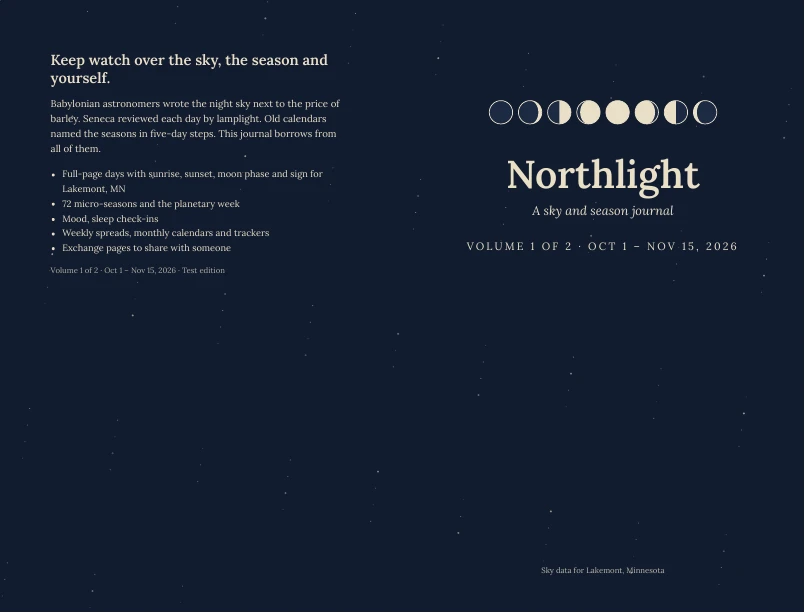
The wrap-around cover of volume 1 of 2 of a quarter book, with its own title block and date range.
Volume 1 of a quarter book, split automatically.
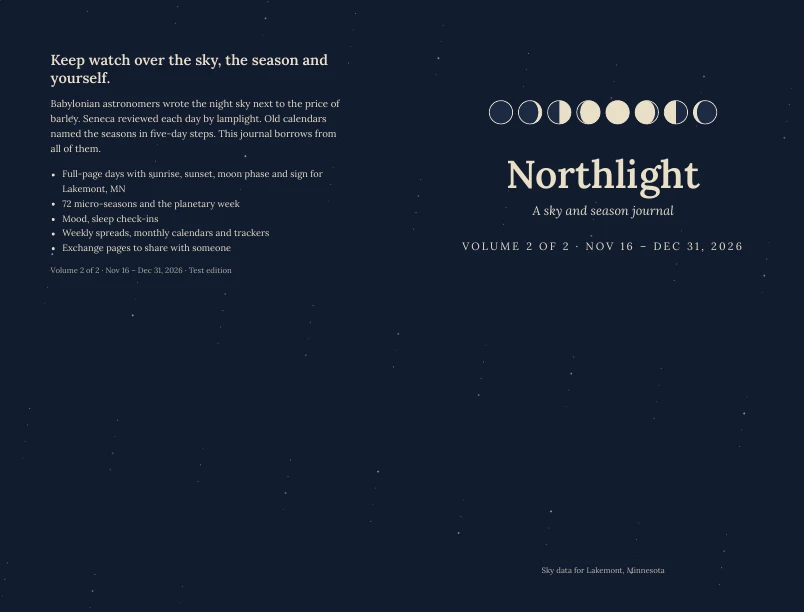
The wrap-around cover of volume 2 of 2 of a quarter book, with its own title block and date range.
Volume 2 of the same book.

Versions, forks and merges

Optional accounts keep projects with full history. Guests keep local versions in the browser and never need an account to design or print.

  • History, compare with changed blocks marked, restore, branches and autosaved drafts.
  • Fork a shared project, propose changes back with page and block diffs, discuss them, then merge.
  • A three-way merge with a resolver that shows both versions when the same item changed on both sides.
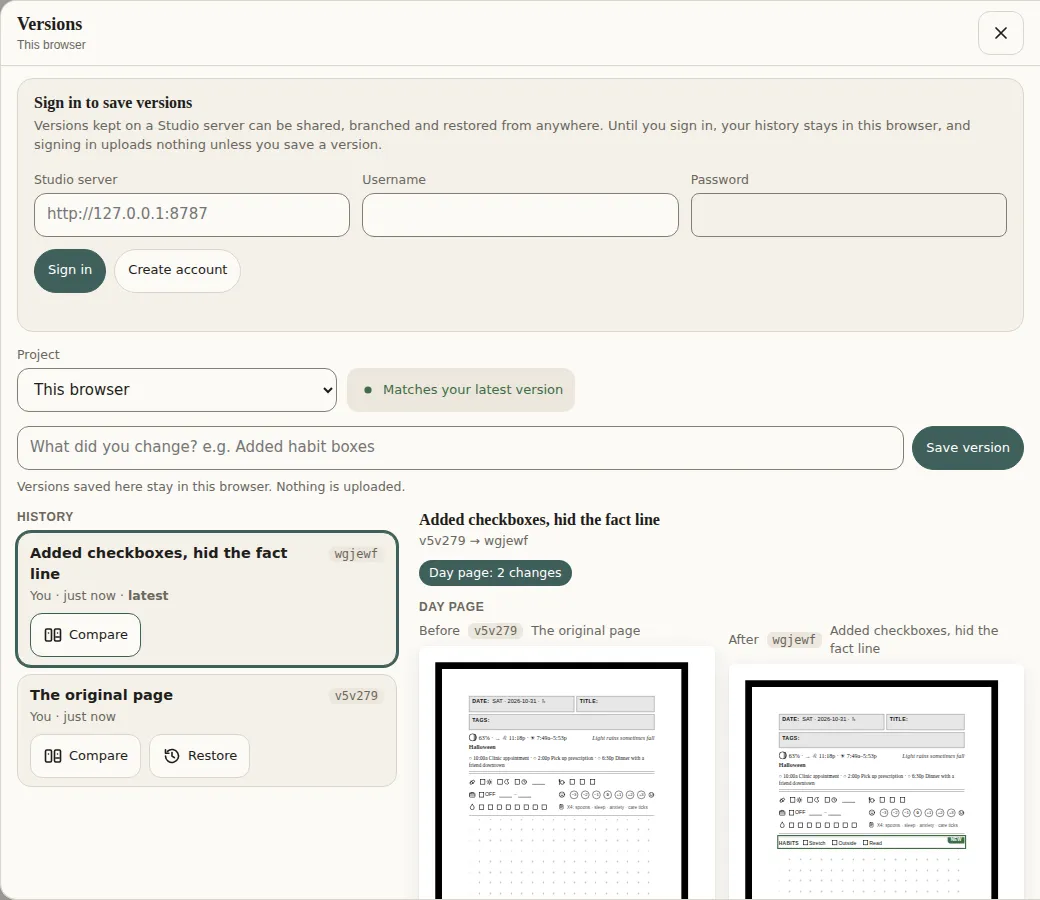
The Versions drawer: a history of saved versions on one side, and a comparison on the other that lists what changed and marks the changed blocks on the page.
The Versions drawer, comparing two saved versions.
Fork, propose, mergeA shared project is forked into your own copy. You propose your changes back with page and block diffs. The owner merges them, and a resolver shows both versions if the same item changed on both sides. Forkyour own copy Proposepage and block diffs Mergethree-way Resolver: both versionsonly when one item changed on both sides
The fork, propose and merge flow.

Accessible by default

A full audit against WCAG 2.2, and a check in CI that fails on new problems.

  • Keyboard reordering of blocks, skip links, focus rings, 44 px targets and reduced motion.
  • Light and dark mode, and a layout that works on a 390 px phone.
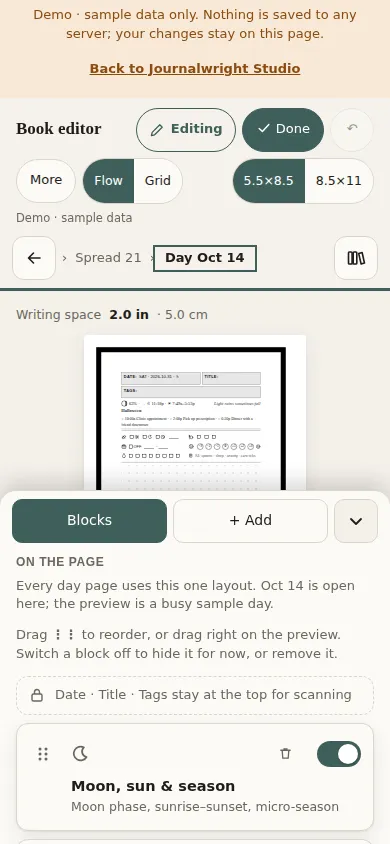
The editor on a 390 pixel wide phone: the page preview with the block palette in a sheet at the bottom.
The editor on a phone.
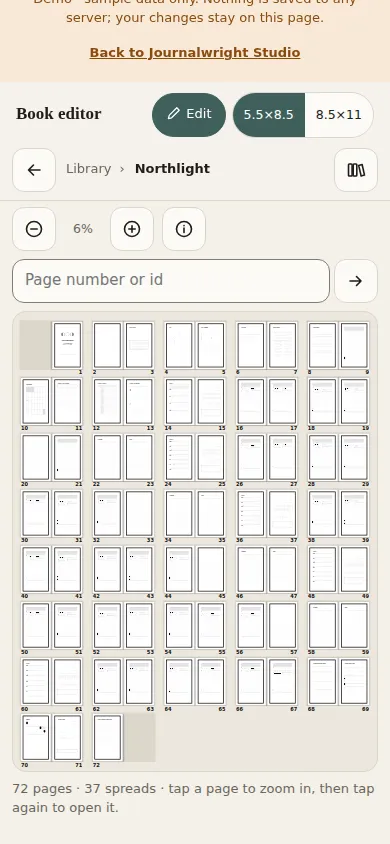
The Book view on a phone, with the page grid fitted to the width.
The Book view on a phone.

E-ink companion

An optional Xteink X4 shows today without power and takes a one-press check-in. It stays offline.

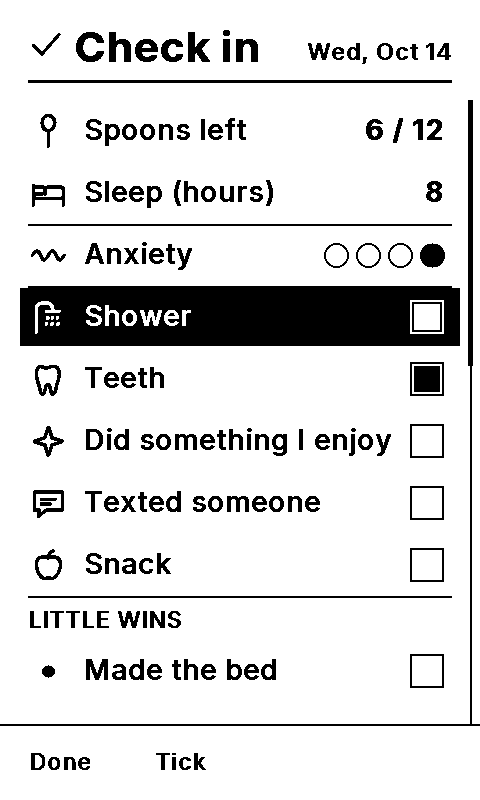
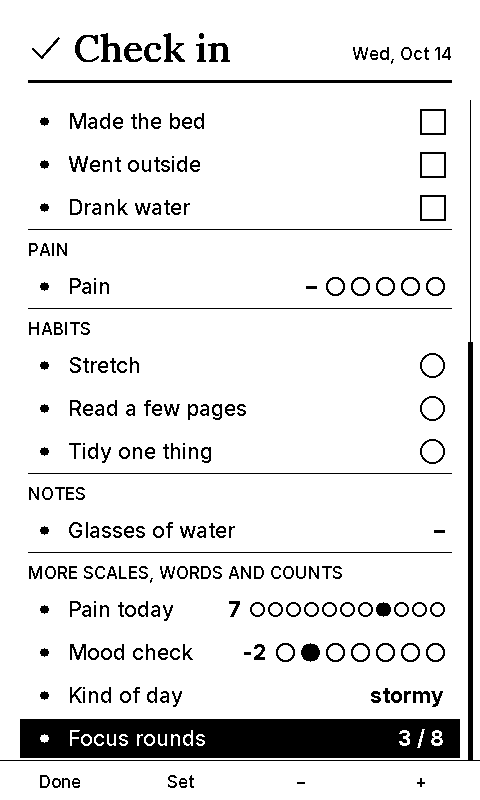
  • Check-ins with zero-based and signed scales and pick-one items, and a silent focus timer.
  • The care split: what lives on paper and what lives on the device.
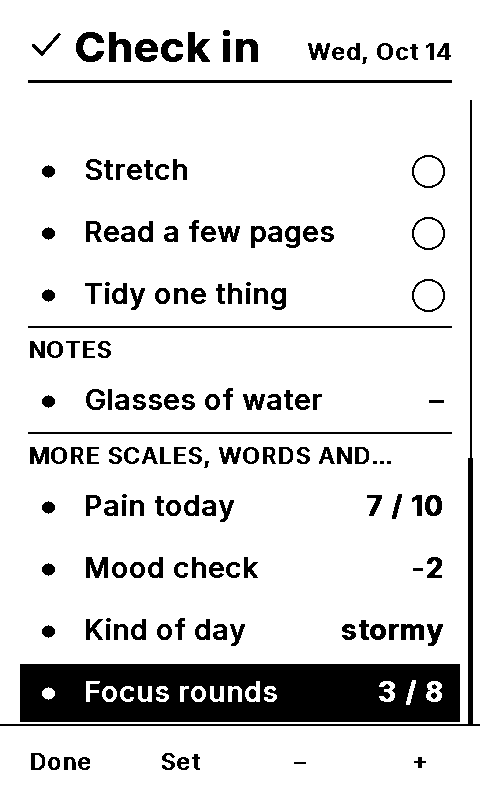
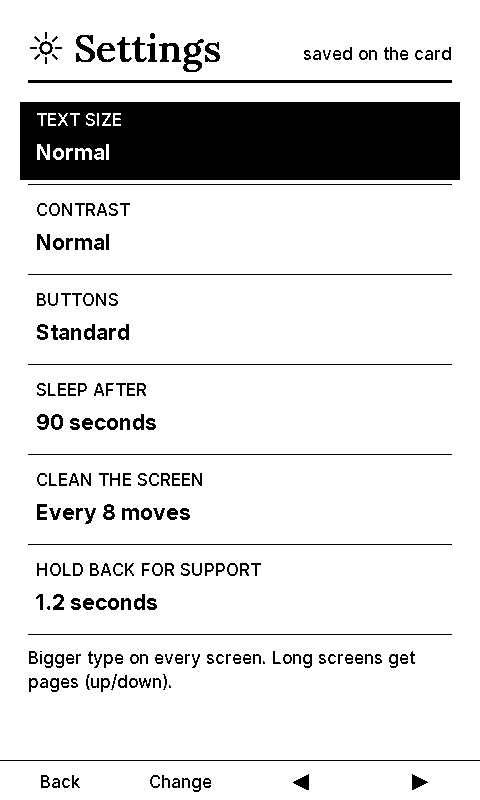
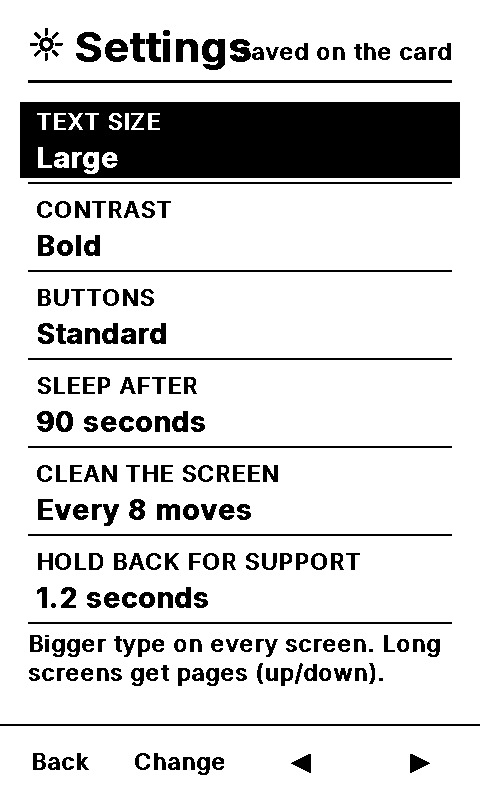
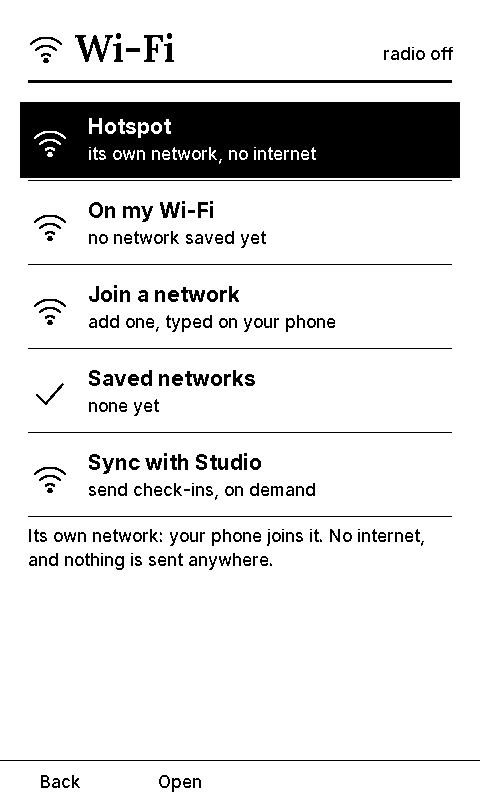
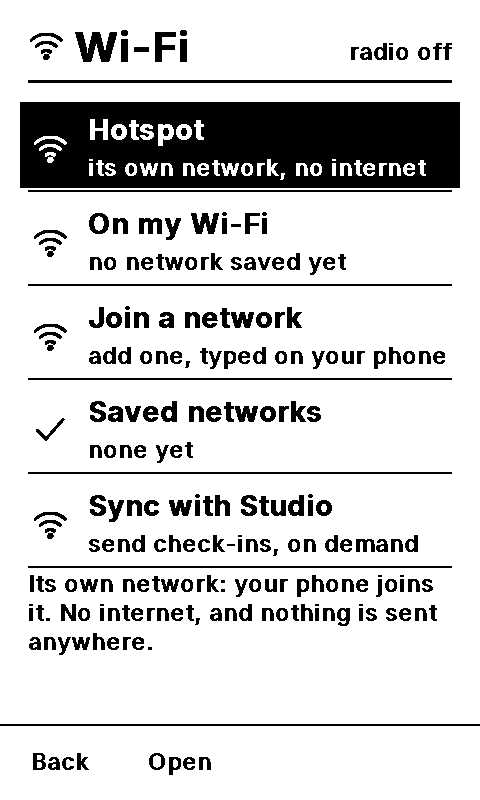
  • Settings for large text, bold type and a button remap; a hotspot page and Wi-Fi modes with a PIN.
Paper and e-ink, splitPaper on the left holds writing, the plan and the safety plan. The e-ink companion on the right holds today, quick check-ins and a silent focus timer. A scan code on each paper page links the two. PaperE-ink writingthe day plansafety planthe record today, no powerone-press check-insilent focus timerlarge text, bold scan
Paper holds the record; e-ink holds today.
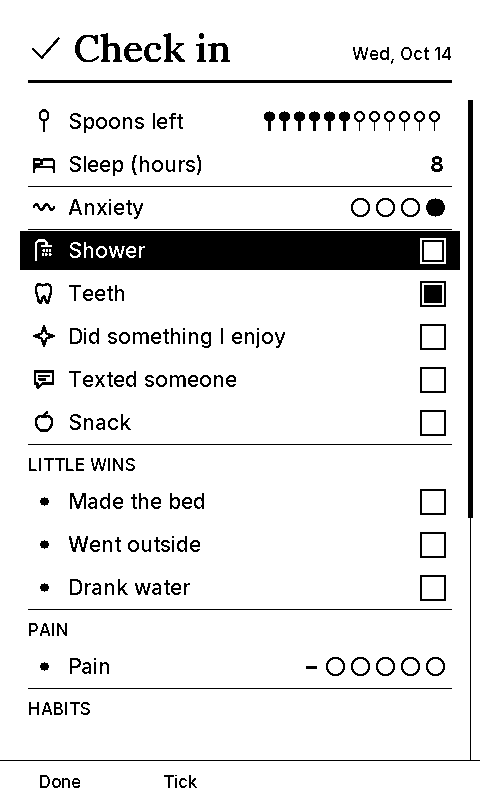
Check-in, normal and large bold.
Scales, counts and pick-one.
Settings: text size, contrast, buttons.
Wi-Fi: its own hotspot or your network.

See it in action

Four ways to use the same tools. Each opens the demo at the right place; the demo saves nothing.

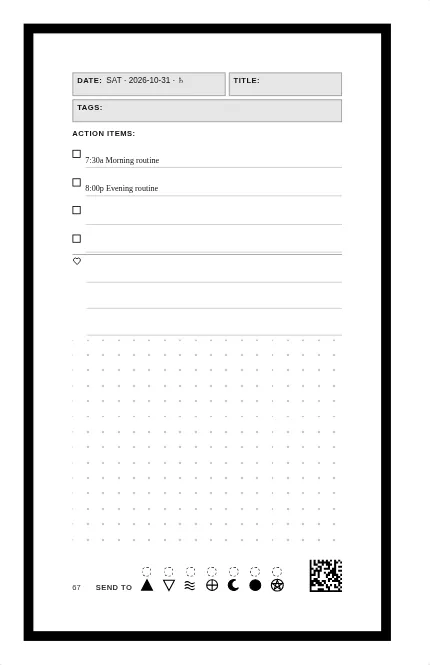
A day page arranged for a night-shift worker: the work shift, a 24-hour time line with plan over actual and the night shaded from the day's sunrise and sunset, a care check-in and a writing space.
A night-shift page.

A shift worker's 24 h time line

Nights one week, days the next: a page that shows the whole 24 hours.

  1. Open the editor and press Edit on any day.
  2. Add Work shift and Time line 24 h from the palette.
  3. Turn on Actual row and Shade night, so sunrise and sunset mark the dark hours.
  4. Drag the time line where you want it and press Done.

Open the day editor

An undated day page: the date box is blank and the page says Day 3, so the book can start on any day.
Day 3 of an undated book.

An undated journal

No dates printed: the date box is blank and pages say Day 1, Day 2. Start on any day and skip a week without guilt.

  1. Open the Library and find the undated practice books.
  2. Set the length in days; weeks and months follow.
  3. Build it: the date box stays blank and each week says "Week of ____".

Open the Library

The wrap-around cover of volume 1 of 2 of a quarter book, with its own title block and date range.
Volume 1 of 2 of a quarter book.

A quarter book in a series

Three months in one book, grouped with the other seasons, and split into volumes if it is long.

  1. Open the season series.
  2. Each book shares the series defaults; change any one.
  3. The build counts pages and splits the book into the fewest balanced volumes, each with its own cover.

Open the season series

A day page with roomy rows: four wide action lines, three widely spaced lines for small good things, and a large writing space.The X4 check-in screen in large, bold type.
A page with roomy rows, next to a large bold X4 screen.

Large print and bold for low vision

A roomier page on paper, and a bigger, bolder screen on the e-ink companion.

  1. On paper: give action items and small good things wide rows.
  2. On the X4: Menu, Settings, Text size Large, Contrast Bold.
  3. Optionally remap the buttons for one-handed use.

Open the day editor

A library of 44 methods

Every block comes from research, not guesswork. Forty-four short docs cover the journaling and planning methods people actually use, what each is good at, and where each one goes wrong.

Read the methods library

Sample pages

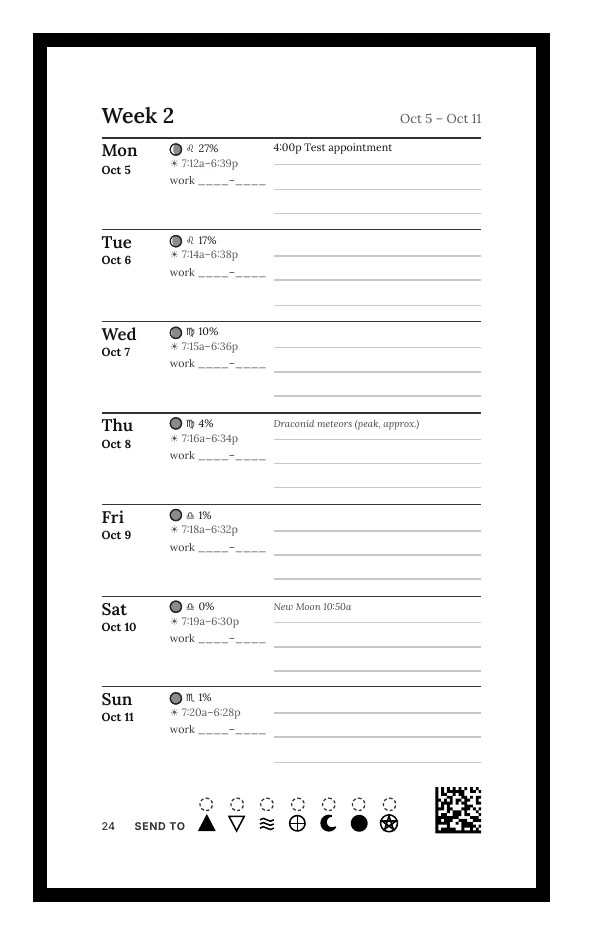
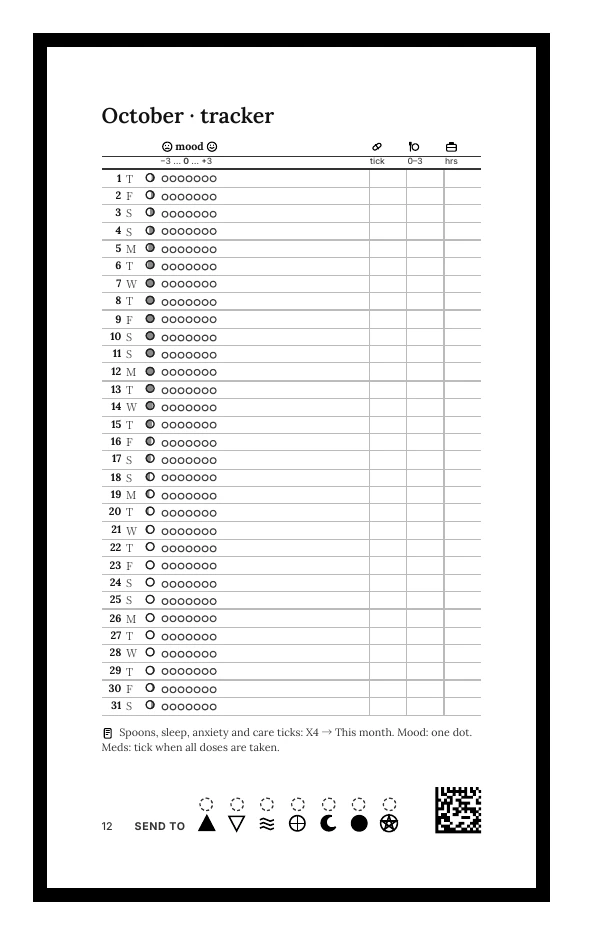
Real pages from the generic sample book, rendered at print quality. No personal data.

Build your own in three steps

  1. Make your profile

    Copy journal/content/profile.example.json and fill in your name, book title, place, time zone and the modules you want.

  2. Arrange the pages

    Open the editor, drag blocks onto the day page, check the Book view, and save your layout.

  3. Build and print

    One command writes every interior and cover PDF. Upload them to Amazon KDP as a private proof first.

cd journal && npm ci && npx playwright-core install chromium
KW_PROFILE=content/profile.example.json KW_OUT=out-sample node render.mjs month 2026-10 test.ics
KW_PROFILE=content/profile.example.json KW_OUT=out-sample node editor/build.mjs   # then open editor/dist/site/index.html

Full quick start in the README

Privacy, as a promise

Journals are personal. The tools are built so that your data stays yours.

  • Calendars are never committed and never uploaded unencrypted.
  • Personal books leave the build only inside a password-protected archive.
  • This site, the editor demo and the sample cards use generic sample data only.
  • No account is needed to design and print. Accounts are optional, only for saving versions and sharing.
  • The e-ink companion sends nothing anywhere unless you start it. Today it only speaks over its own hotspot or a Wi-Fi network you set up on it. Syncing with your account, when it arrives, will only ever run when you press Sync, and health logs stay off unless you turn them on.

Roadmap

Only what is not finished yet. Everything above is ready to use today. Order can change, and nothing here is needed to design and print a book.