Guide
Make a journal, step by step
From an empty page to a PDF you can upload to Amazon KDP. Every step names the button to press and what it does. Each picture marks the exact control with a number, and the list under it says what that number does.
Open the editor demoStart at step 1
The demo uses a sample book and sample calendar. Nothing you do there is saved anywhere, so try everything. About 10 minutes for the short path: steps 1, 4 and 15. Troubleshooting is step 17.
Open the editor1 min
The editor is a web page. You can try it with sample data first, then open your own copy.
There are three ways in. Pick one:
- Try the demo. Open the editor demo. It has a sample book called Northlight. Nothing you do is saved anywhere, so you cannot break it.
- Your own copy on the web. If you set up the project's site (see SETUP.md), your working editor is at
/app/on that site. It saves in your browser and can commit to your repository. - On your computer. It is one file with no server. Needs Node 20 or newer.
cd journal && npm ci
KW_PROFILE=content/profile.example.json KW_OUT=out-sample node render.mjs month 2026-10 test.ics
KW_PROFILE=content/profile.example.json KW_OUT=out-sample node editor/build.mjs
# then open journal/editor/dist/site/index.html in your browser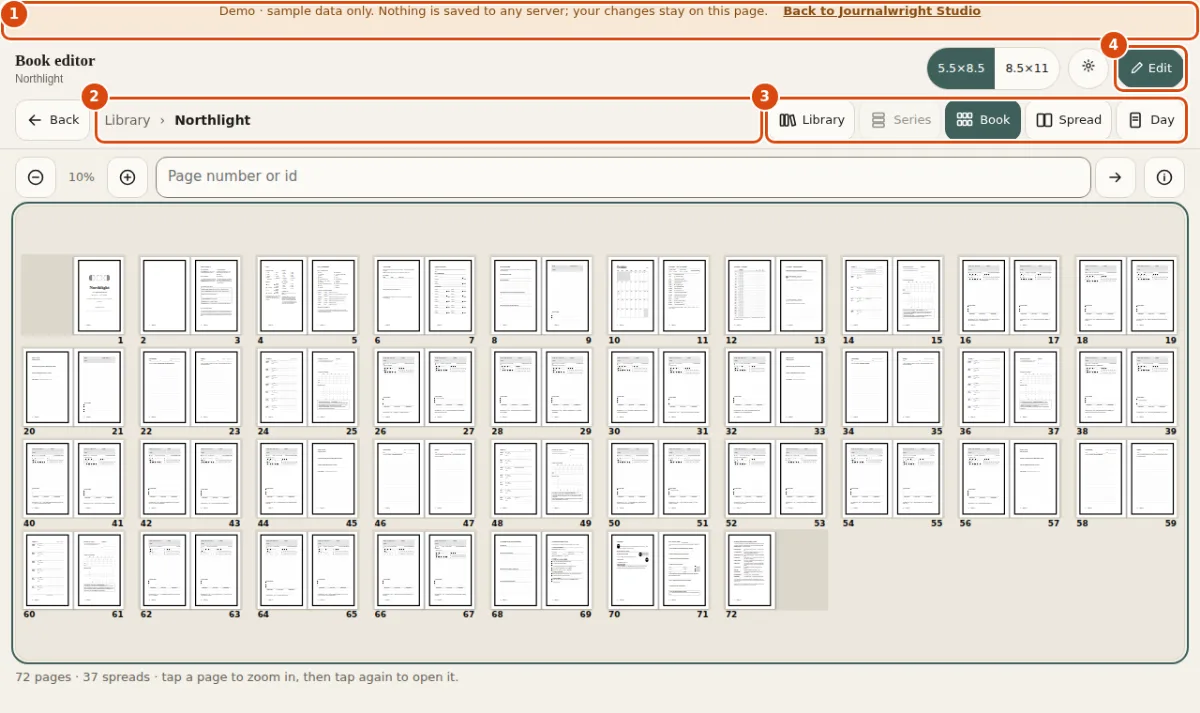
- Demo banner. Says this copy is sample data. Nothing you do here is saved anywhere. Your own copy has no banner.
- Where you are. The breadcrumb: Library, then the book. Press a name to go back up to it.
- Zoom level. Five buttons: Library, Series, Book, Spread and Day. Each zooms one step in or out.
- Edit. Turns on editing for this level. Nothing changes until you press it.
The editor has five zoom levels. You move between them with one row of buttons, and you can always tell where you are from the breadcrumb.

- Library. Every book on your shelves.
- Series. A set of books that share defaults, such as four seasons. Greyed out when this book is on its own.
- Book. All pages of the book, laid out as spreads.
- Spread. Two facing pages at reading size.
- Day. One day page. This is where you build the page from blocks.
Keyboard: L Library, 0 Book, 1 Spread, 2 Day, E edit, Esc done.
Choose a profile and a trim3 min
The profile is who and where the book is for. The trim is the paper size. Both are set once and every page follows them.
A profile is one small file, journal/content/profile.json: your name, the book title, where you live (for the sun and moon), your time zone, when your day starts and which trim to print. Nothing personal lives in the code. To start your own, the quickest way is the setup command in chapter 3, which asks the questions and writes the file. Or copy the generic example and edit it:
cp journal/content/profile.example.json journal/content/profile.json{
"person": { "name": "Sam" },
"book": { "title": "Northlight", "start": "2026-10", "edition": 1 },
"location": { "place": "Lakemont, MN", "timezone": "America/Chicago" },
"day_start_hour": 5,
"trim": "small"
}The editor shows the same facts as a sheet you can change without editing a file. Switch to edit mode on the Book view, then open Book settings.
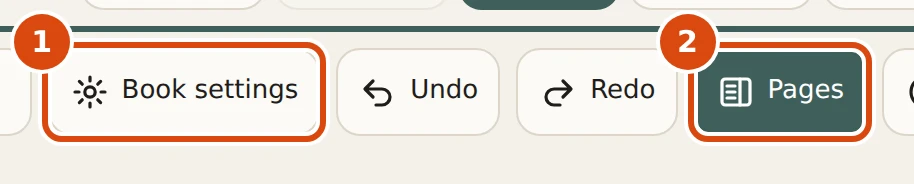
- Book settings. Opens the sheet with the title, length, first month, edition and cover.
- Pages. Shows or hides the page list (chapter 6).
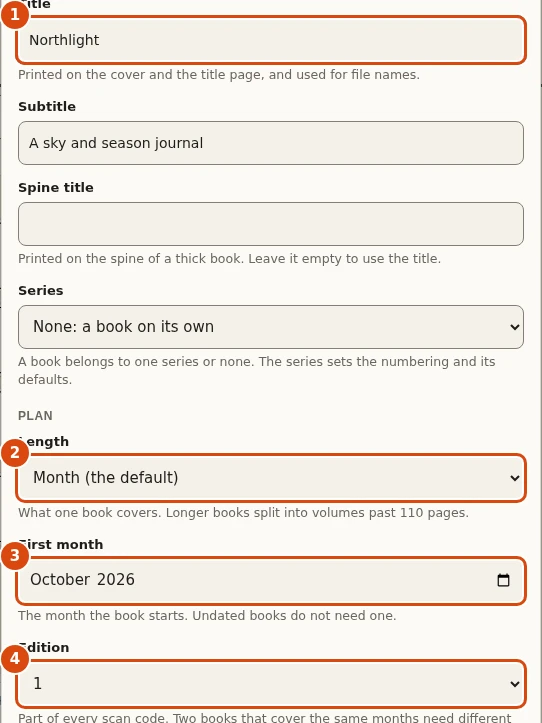
- Title. Printed on the cover and the title page, and used in file names.
- Length. What one book covers: a month, a season, a year, or undated. Long books split into volumes past 110 pages.
- First month. The month the book starts. An undated book skips it.
- Edition. Part of every scan code. Two books that cover the same months need different editions.
Trim is the printed page size. KDP in the US offers 5.5 by 8.5 inches and 8.5 by 11 inches (A5 is not offered). A paperback needs 24 to 110 pages. A hardcover needs at least 75 pages on KDP, and this tool builds at least 76 so the count stays even. The top bar switches the preview between the two. The print follows the same choice.
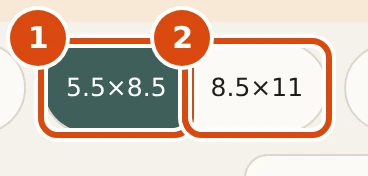
- 5.5×8.5. The small trim: a paperback you can carry. The preview and the print both use it.
- 8.5×11. The big trim: more room to write. Every block is re-fitted to the page.
Start your own book and add packs10 min
One command asks a few questions, writes your profile and builds a sample book. Packs are the folders that hold regional facts, such as support numbers.
This chapter is the command line. The editor has no screen for it, so there are no pictures to press: every step is a command and what it prints. You need Node 20 or newer (CI uses 22), Python 3 with pillow, and Chromium.
git clone <this repository> && cd Journaling/journal
npm ci && npx playwright-core install chromium && pip install pillow
npm run init
npm run init asks the questions below. Every one has a default: press Enter to take it.
- Name, book title, subtitle. Used on the title page, the cover, the spine and in file names.
- Where you are. Pick a city from a short list, or type a place with its latitude, longitude and time zone. It sets sunrise and sunset, the moon, the seasons and the time zone on every clock time.
- The hour your day starts. A whole number from 0 to 8. With 5, 2 a.m. still belongs to yesterday.
- Trim.
small(5.5 by 8.5) orletter(8.5 by 11). - Modules. The moon and sky pages, spoons, therapy blocks and, if your pack has them, trans support and bus pages.
- Content pack. Which pack fills the Support page.
genericis the start. - Book scope and first month. One month per book, a quarter, a season, half a year, a year, your own dates, or an undated book.
When it finishes it has written content/profile.json (it never overwrites one without asking), made your book id and built a sample book from the made-up calendar test.ics. The id is eight characters, different for every book, and it keeps your scan codes apart from every other book's. The end of a run looks like this (shortened):
Wrote content/profile.json (book id 92W8QJHR: it keeps your scan codes apart from every other book's).
Building a sample book from test.ics (about a minute)...
book 2026-10: 2026-10-01 -> 2026-10-31, 5 weeks, 72 pages
Overflow check: [] 0 (every page fits)
Sample book: out-sample/m2026-10/northlight-2026-10-interior-5.5x8.5.pdf (in this folder)
Open that PDF. Every page is the same shape as your real one will be. Then init lists what to do next: put your own calendar in private/ (it is git-ignored and never uploaded), build with node render.mjs month 2026-10 private/your.ics, and open the editor.
Without a keyboard
Every question is also a flag, so init runs in a script or a scratch folder. --yes takes the default for anything you did not give and never asks.
npm run init -- --yes --name Sam --title "Northlight" --city chicago --modules sky,spoons --scope month --start 2026-10
node init.mjs --help          # every flag; --city list shows the built-in places
If a profile already exists, init stops with "Not overwriting ... Use --profile <another file> to write a new one beside it, or --force to replace it. Nothing was written." Your profile holds your name and place. If your copy of the repository is public, add content/profile.json to .gitignore.
Packs
A pack is a folder of data that a book reads: a region's support numbers, a transit feed, extra holidays, a table of seasons, word lists for puzzles. The engine holds nothing regional, a pack does, and a pack is only data: nothing in it runs. The one that ships for general use is generic. It has two United States lines, each with a dated source, and a placeholder that prints "Add your local numbers here". The engine never fills in a phone number for you.
The kinds of pack, each with one data file:
support,trans-supportandclinic: support, trans and clinic contacts. These are personal: they never go into a Studio version, fork or proposal.transit: a transit agency's schedules.holidays: extra observances.seasons-history: the 72 micro-seasons.puzzles: word lists for the puzzle blocks (chapter 10). These are public.region: a bundle of any of the above for one place.
Make one from a starter, seal it, check it, then name it in your profile:
node packs-cli.mjs new support my-town        # copies packs/_template/support/ to packs/my-town/
# edit packs/my-town/support.json
node packs-cli.mjs seal my-town               # records the sha256 of each file in pack.json
node packs-cli.mjs check my-town              # every check; fix what it reports
# then in content/profile.json:   "paths": { "support": "my-town" }
Sealing matters: seal records a hash for each file, and the build stops if a file no longer matches, so a reprint uses exactly what you checked. Change a file, run seal again. node packs-cli.mjs kinds prints every kind's data format and how the build uses it.
The verification rule. The build refuses to print support, trans support or clinic pages when any item has no verification note: "verified": {"who", "date", "source"}, with the date as YYYY-MM-DD and the source the organisation's own page. An item can instead be a placeholder, or say it is unchecked on purpose ("verified": false with "checkBeforePrinting": true), in which case the build prints it and warns you every time. Re-check every number before each print run: numbers and hours change.
There is no packs screen in the editor yet: a pack is a folder you edit and a command you run. Other pack kinds in the plan (themes, fonts, icons, block packs, language and prompt packs, starter kits) are not built. A Credits page for packs is not built either; each build writes manifest.json with the pack id, version, hash and credit instead. Full details: journal/PACKS.md and journal/GUIDE.md.
Build a day page from blocks5 min
A day page is a stack of blocks. You choose the blocks, the order and the options. The preview is the real page.
Open a day: press the Day button, or press a page twice in the Book view. A day page opens read-only, so you cannot change it by accident.
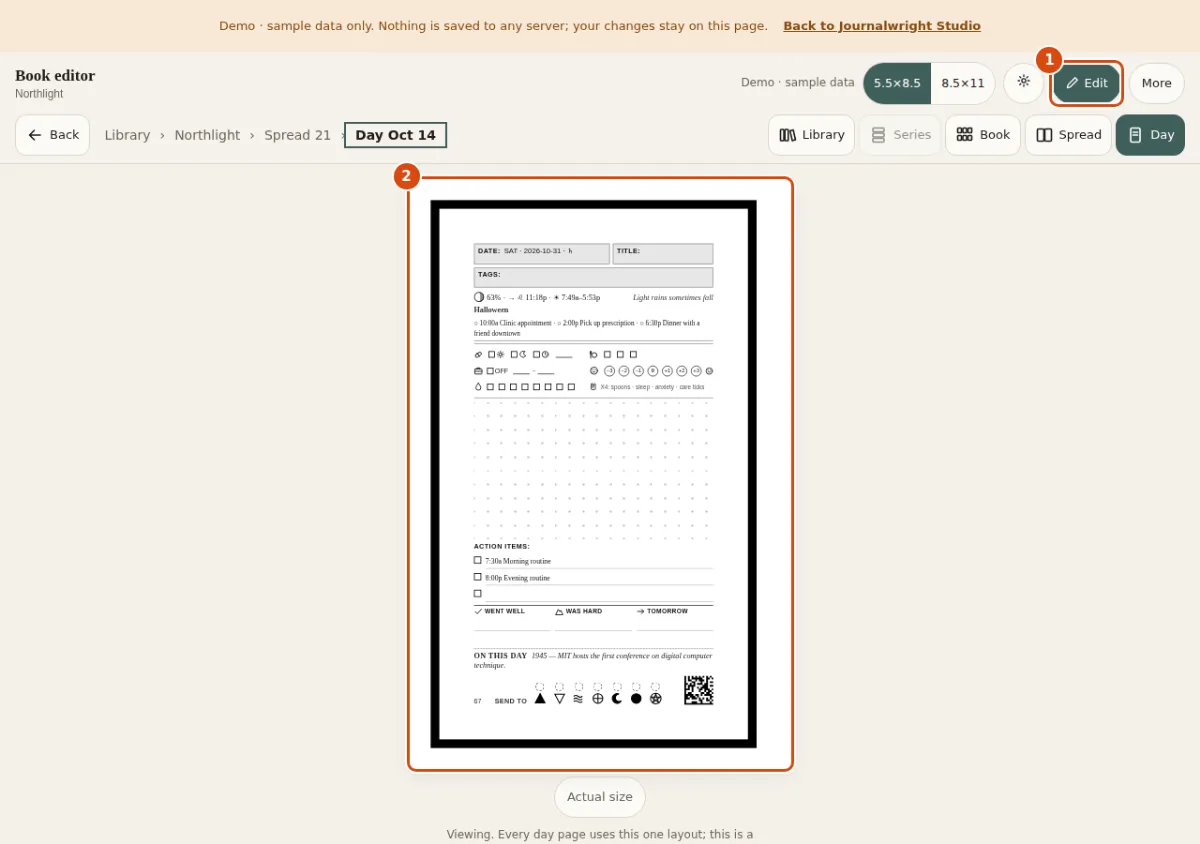
- Edit. Switches this page to edit mode. Press E on a keyboard.
- The page. The day page at print size. Every block you add or move shows up here as you do it.
Press Edit. The screen splits into three areas.
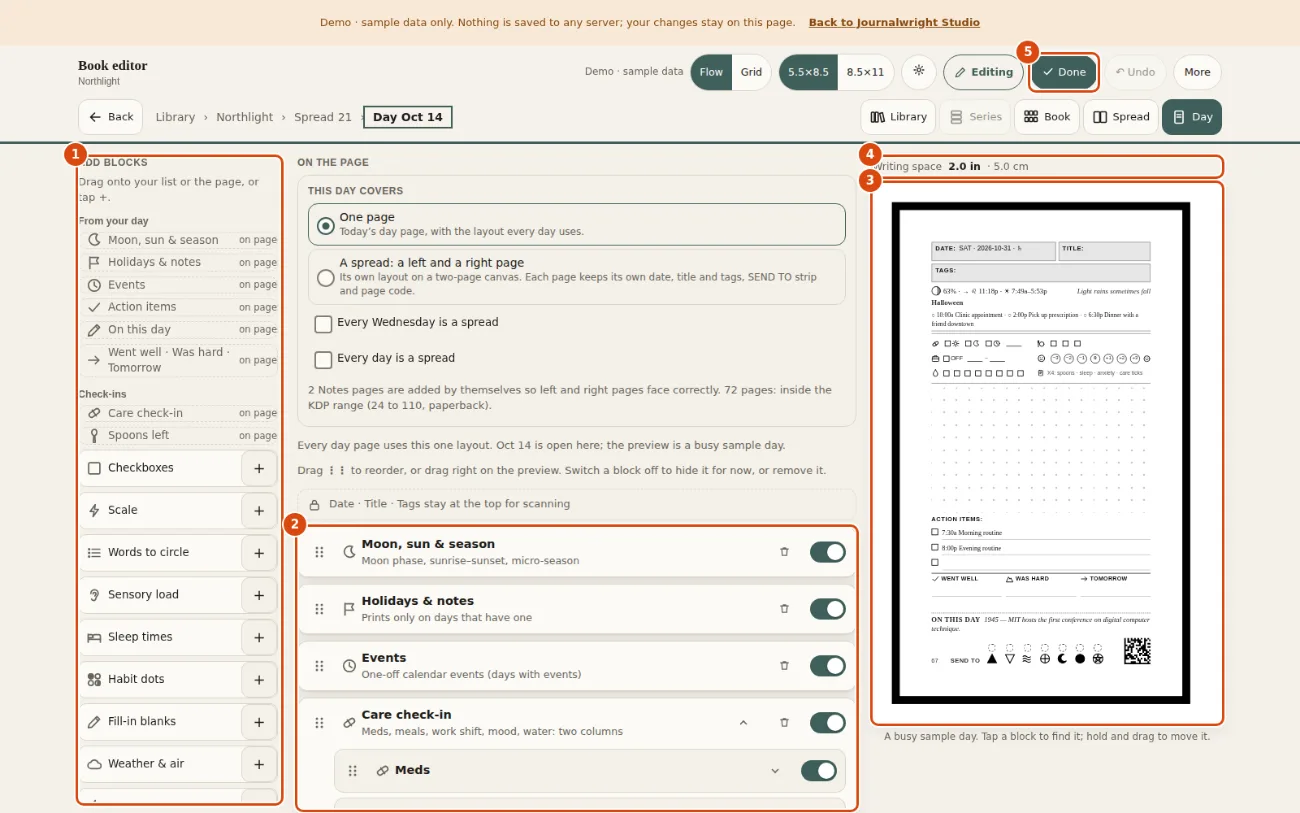
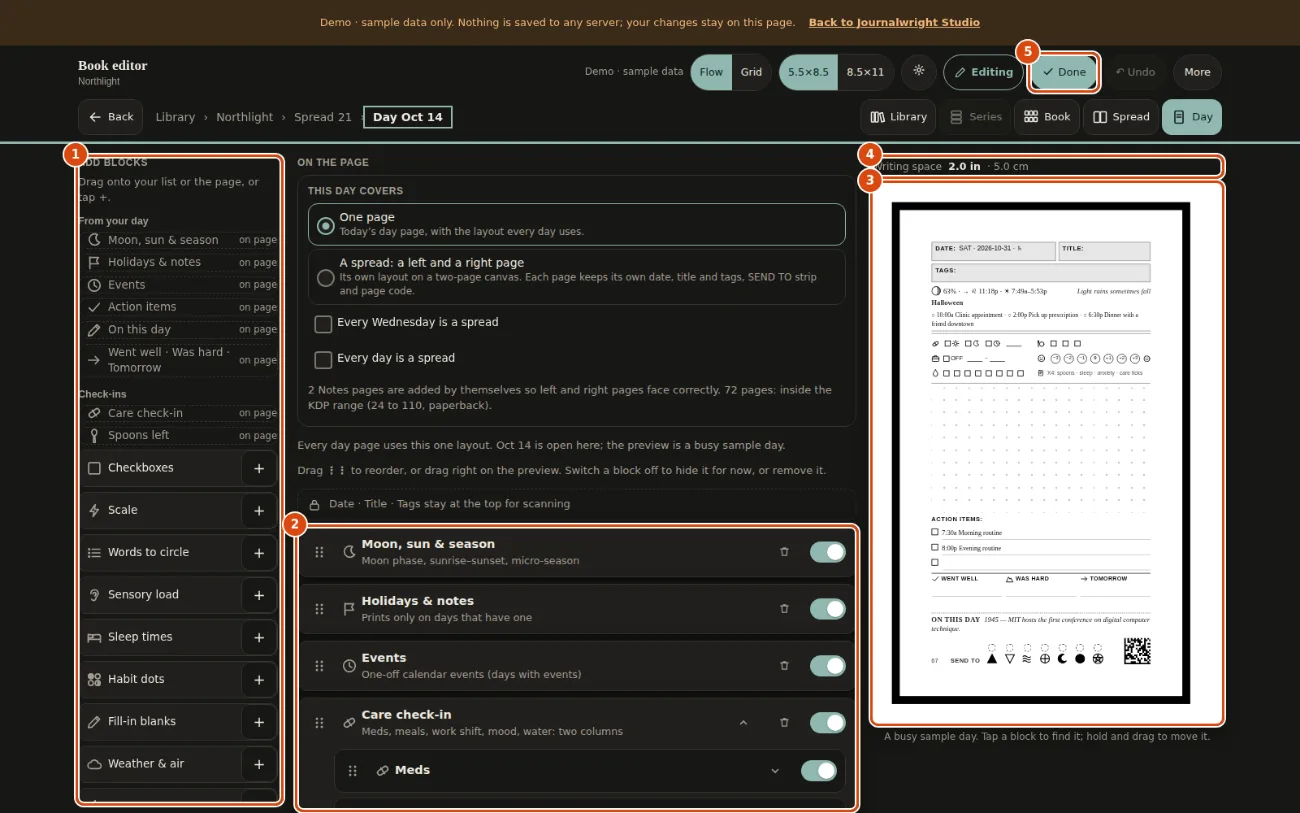
- Add blocks. Every block you can use, in groups. Drag one, or press its + button.
- On the page. The blocks on this page, top to bottom. Drag the grip to reorder; use the switch to hide one.
- Live preview. The real page. It redraws after every change.
- Writing space. How much blank room is left for writing. Blocks take it away, so watch this number.
- Done. Leaves edit mode. Escape does the same.
The header (date, title and tags) shows a small padlock. It is fixed on purpose, so the scanner and the app can always find it.
Add a block
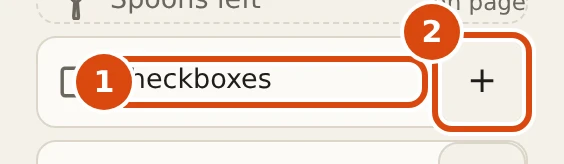
- The block. Drag the tile onto the list or straight onto the page to place it where you drop it.
- + button. Adds the block at the end of the list. This is the way to do it from a keyboard or a phone.
Reorder, hide and remove

- Grip. Drag to reorder. With a keyboard, focus it and press Up or Down.
- Remove. Takes the block off this page. Undo brings it back.
- On/off switch. Hides the block without losing its settings. Turn it on again later.
Set a block's options
Each block lists its own choices: how many lines, how tall, which rows, which words. The block's name or the small arrow opens them.
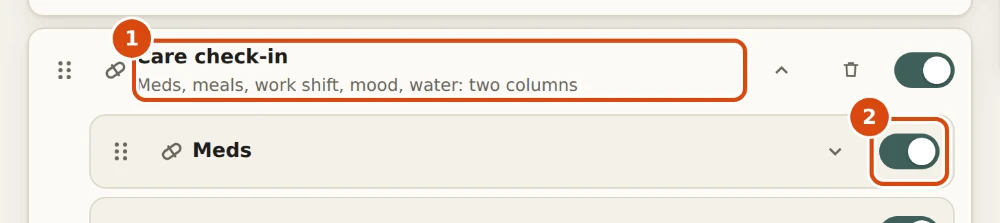
- Block name. Press the name to open its options. Press it again to close them.
- Option switch. Many blocks hold smaller parts. Each part switches on or off alone.
Start from a method
You do not have to start with a blank list. The editor has ready-made arrangements built from the methods library (bullet journal, time blocking, a care check-in and others). The result is just blocks, so you can change any of it.
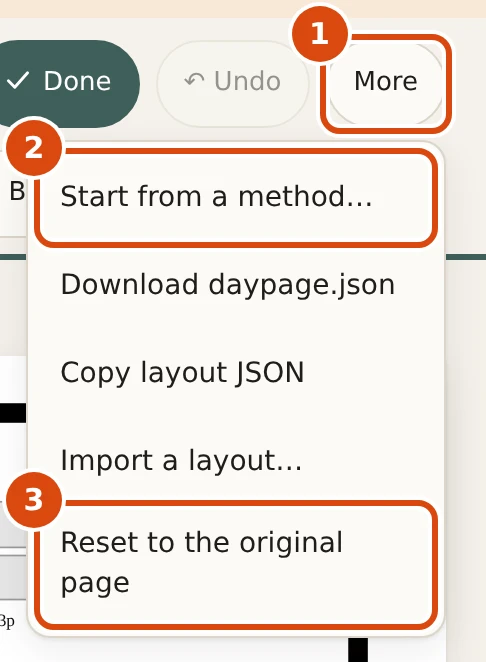
- More. Opens the menu of things that act on the whole layout.
- Start from a method. Pick a ready-made arrangement, such as a bullet journal or time blocking, and edit it from there.
- Reset. Goes back to the original page. Undo brings your changes back.
Changed your mind
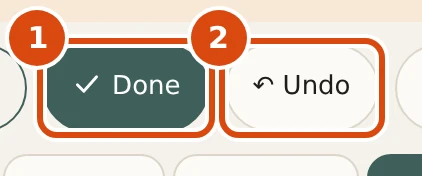
- Done. Finishes editing.
- Undo. Takes back the last change. Press it again to keep going back. Ctrl+Z does the same.
On a phone
On a narrow screen the preview comes first and the blocks live in a sheet at the bottom. Everything above works the same, with large touch targets.
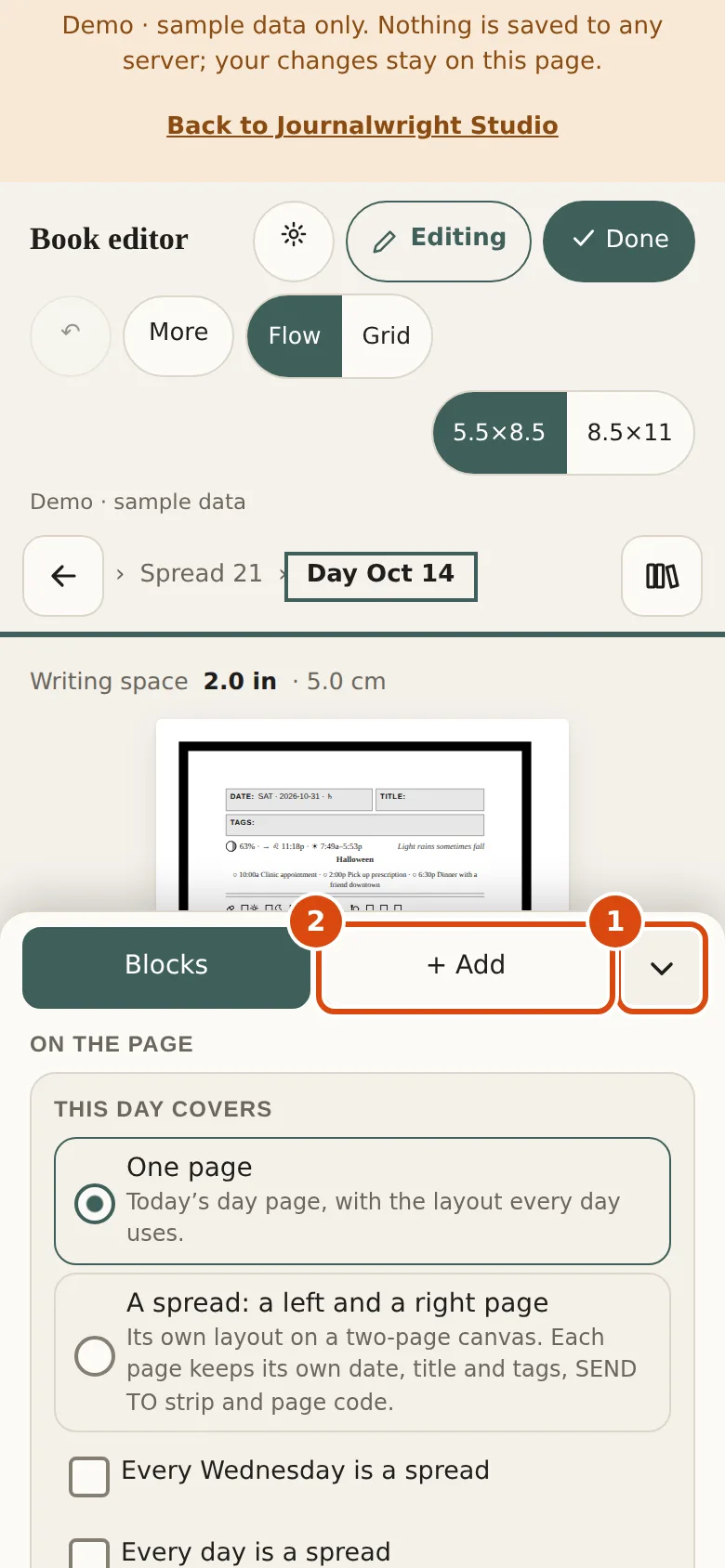
- Sheet handle. Collapses or opens the blocks sheet, so you can see the whole page.
- + Add. Switches the sheet from your blocks to the palette of blocks to add.
The same blocks build more than the day page. A day can cover a whole spread (chapter 8), Notes, blank and Collection pages are made of blocks (chapter 9), and the Puzzles group adds a word search and a crossword (chapter 10).
Size blocks on the grid4 min
Flow mode stacks blocks for you. Grid mode lets you put each one exactly where you want it and choose its size.
Use Flow first. Switch to Grid when you want two blocks side by side, a tall sketch box, or a narrow column of check-ins next to a wide writing area.
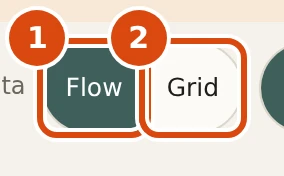
- Flow. Blocks stack in order and the writing space takes what is left. Easiest, and the default.
- Grid. You place each block yourself on a grid of 4 columns by 24 rows.
The page is a grid of 4 columns by 24 rows. Blocks snap to it, so nothing overlaps and nothing hangs off the edge.
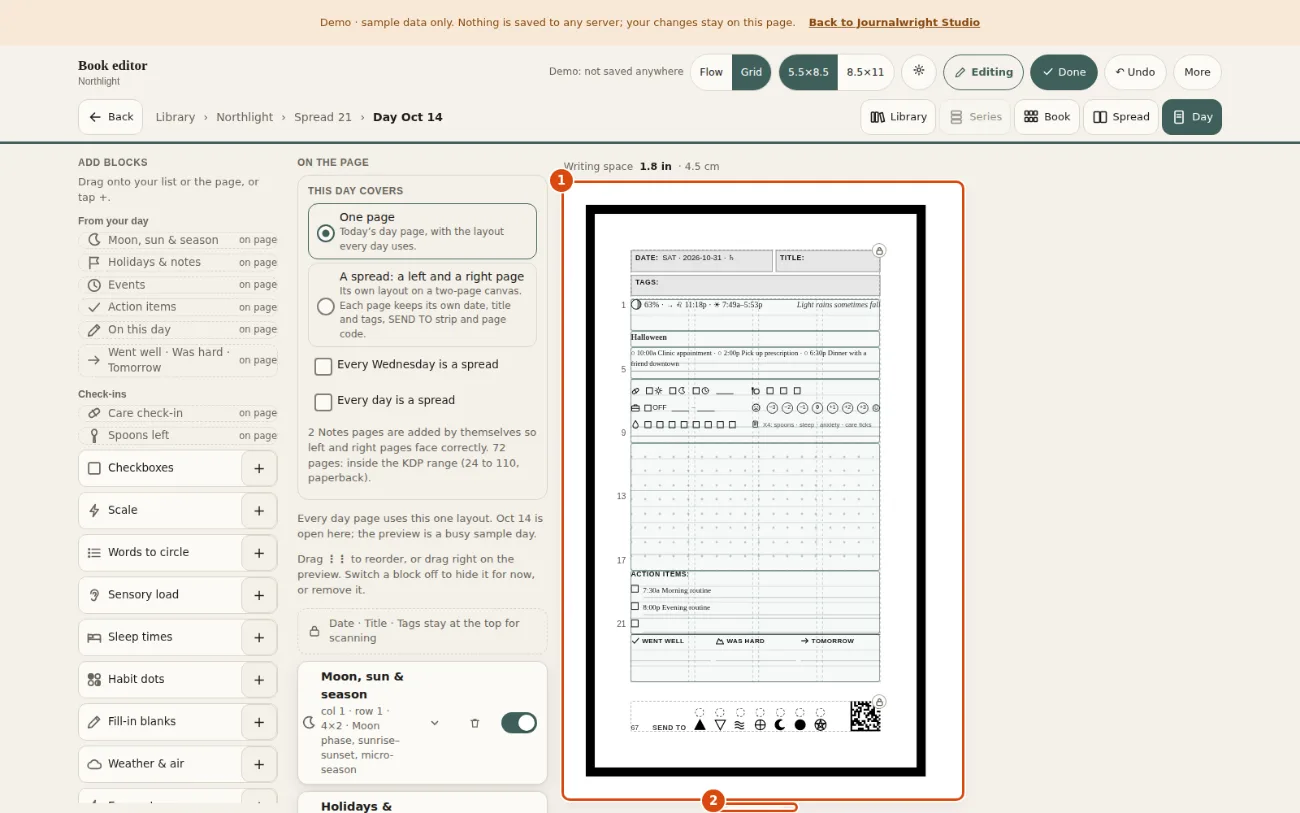
- The grid. Dotted lines show the columns and the numbers down the side count rows. A row is one tight line (5.6 mm).
- Actual size. Shows the page at true printed size, so you can judge whether a line is big enough to write on.
Open a block in the list. In Grid mode it has four steppers.
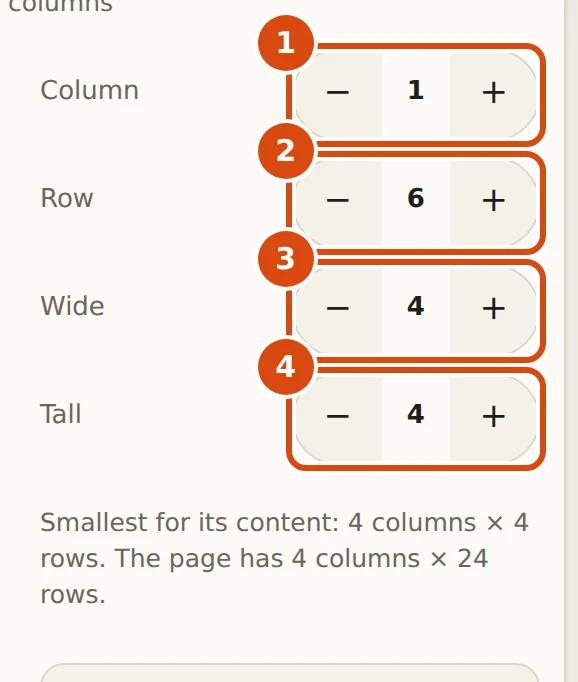
- Column. Which column the block starts in. The buttons move it left and right.
- Row. Which row it starts in. The buttons move it up and down.
- Wide. How many columns it covers.
- Tall. How many rows it covers. A block never goes smaller than its content, and a move that would break a rule is refused with the reason.
Drag works too: grab a block on the preview and drop it where you want it. The writing-space number at the top tells you what is left. If a change would push a block off the page, the editor says why and does not apply it.
Organise pages in the Book view5 min
The Book view shows the whole book. Use it to find a page, to see the order, and to move, hide or add pages.
Press Book in the zoom row. Every page is drawn where it prints, in facing spreads. Page 1 sits alone on the right, like a real book.
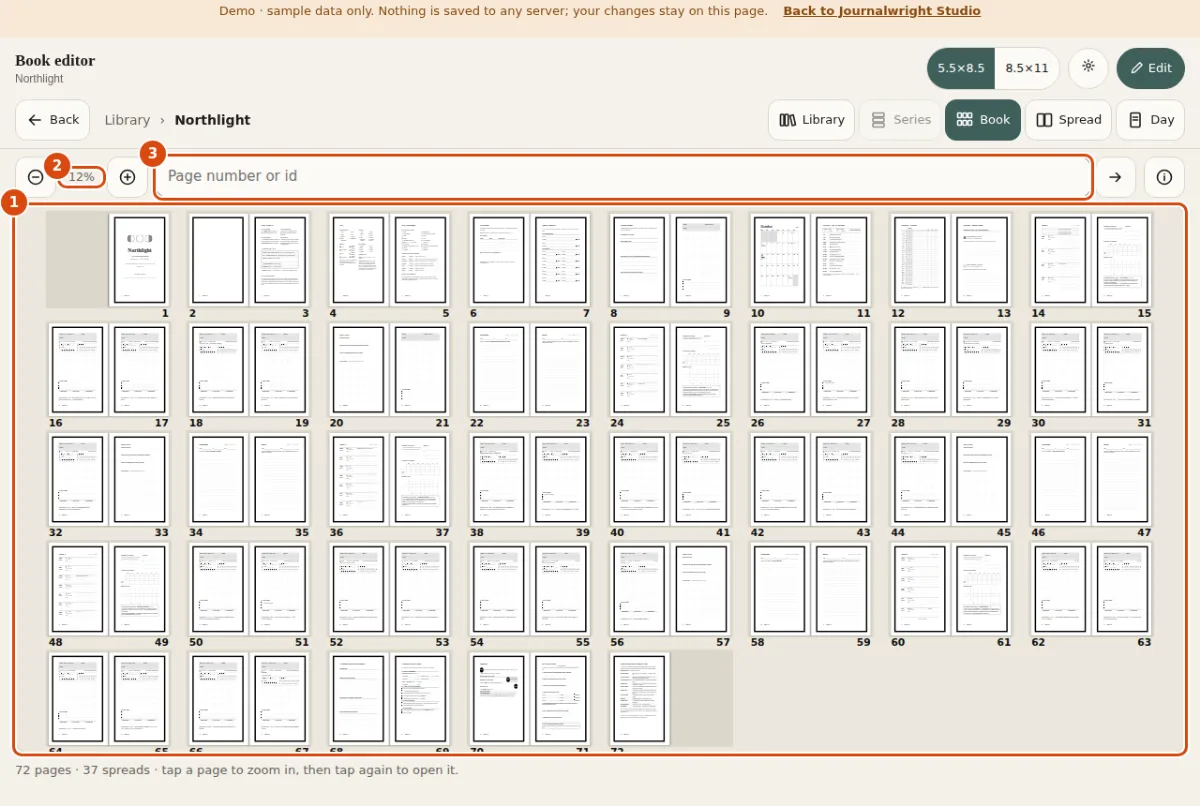
- The canvas. Every page where it prints. Press a page to zoom in on it, then press it again to open it. Drag to move around.
- Zoom. The current zoom. The minus and plus buttons beside it change it; so do pinch and the + and - keys.
- Jump. Type a page number or a page id such as day.2026-10-14, then press Enter.

- Zoom out. See more pages at once.
- Zoom in. See one spread at reading size.
- Go. Goes to the page you typed in the box.
- Legend. Explains the colours and marks on the canvas.
Press Spread for two facing pages at reading size. Press Day to edit a day page.
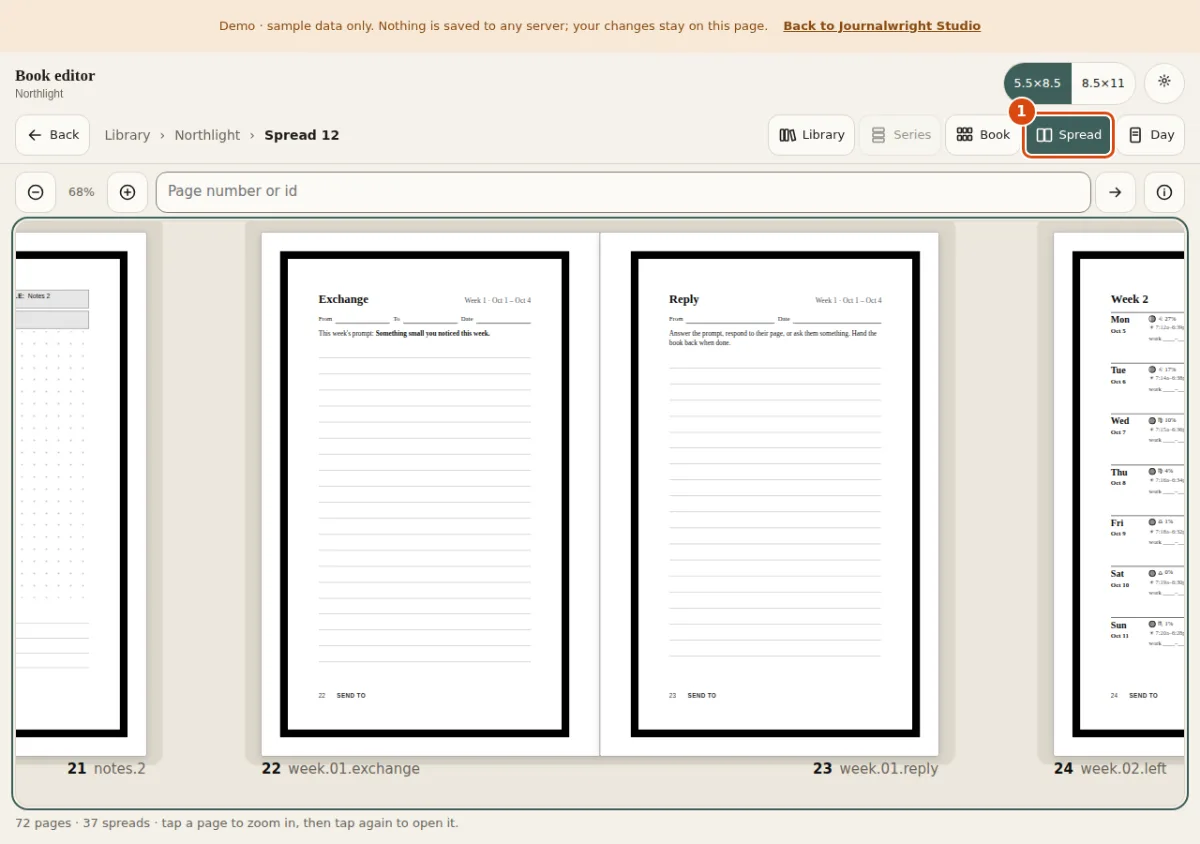
- Spread. You are here: two facing pages, side by side, as they sit in the printed book.
Move, hide, add and remove pages
Press Edit on the Book view. A Pages panel opens with the page count and a check against the KDP limits.
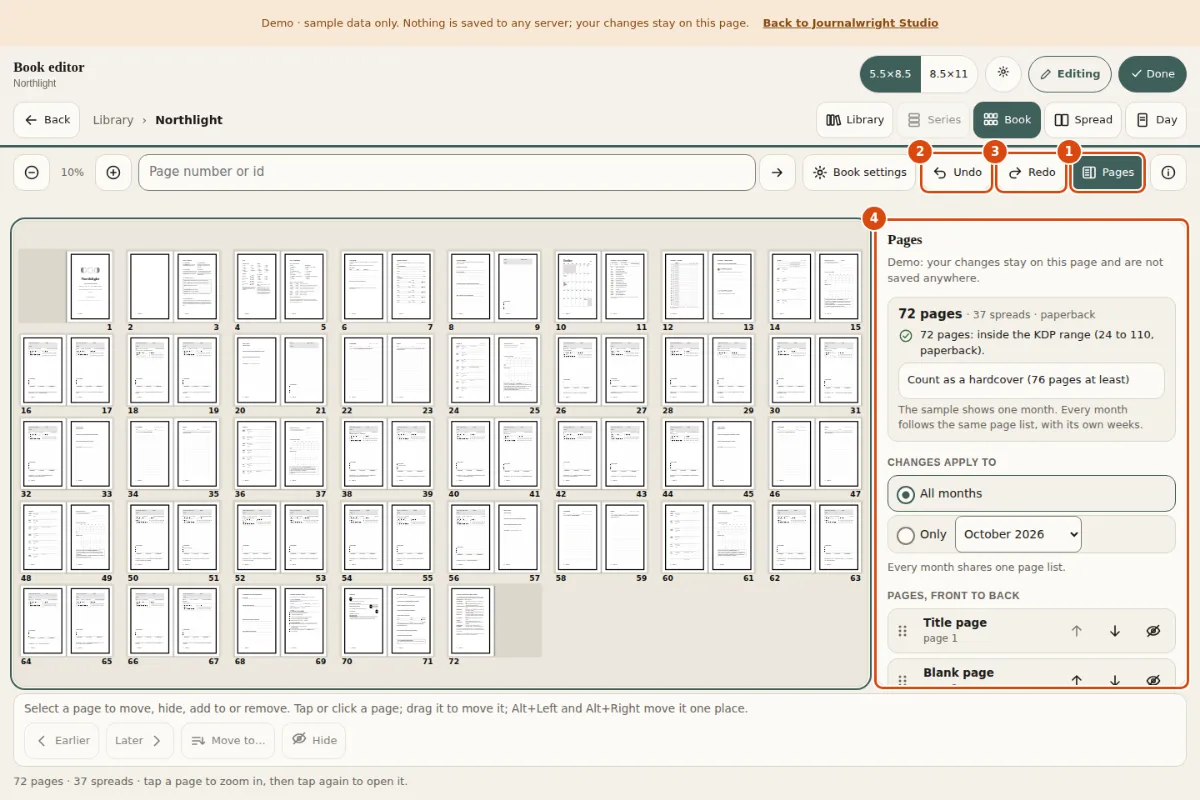
- Pages. Shows or hides the page list on the right: a numbered list you can reorder.
- Undo. Takes back the last page change.
- Redo. Puts back what you undid.
- Pages panel. The page count and the KDP range check, which months a change applies to, and the pages front to back.
Press a page to select it. A toolbar appears under the canvas.
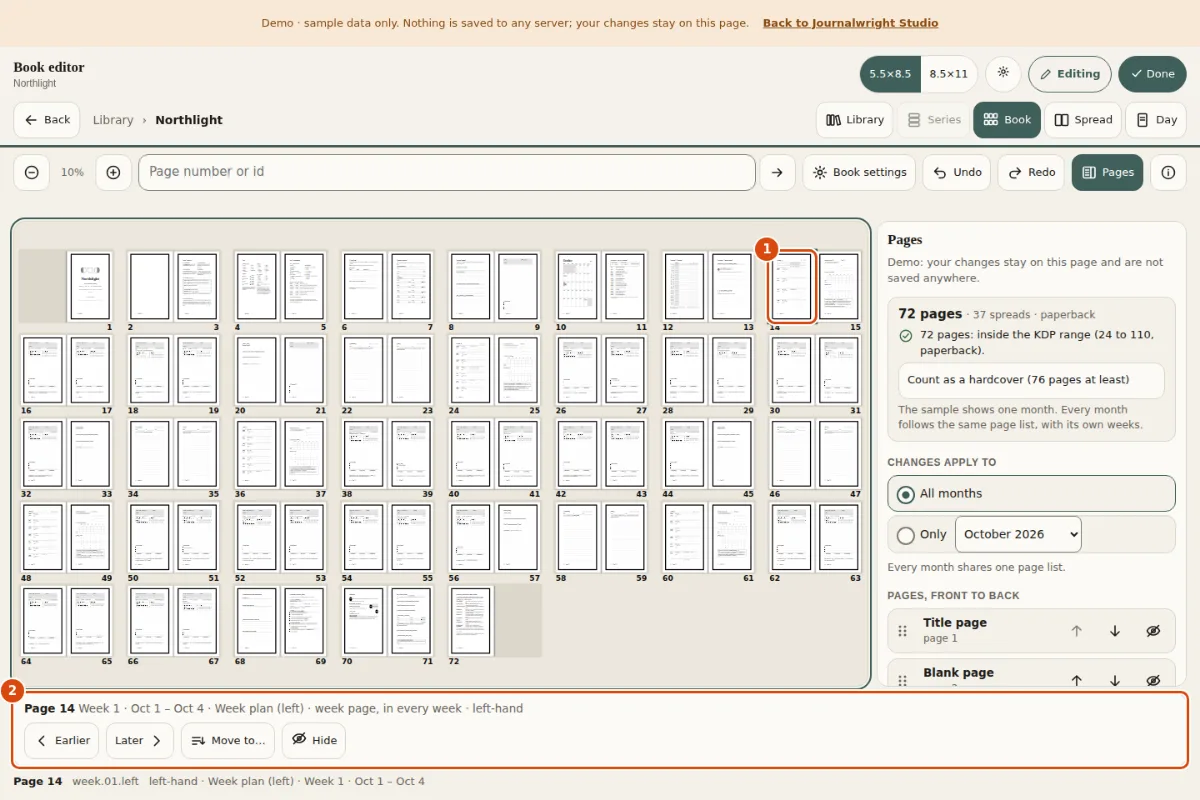
- A selected page. Press a page once to select it. It gets an outline and the toolbar below it lists what you can do.
- Page toolbar. The actions for the selected page.
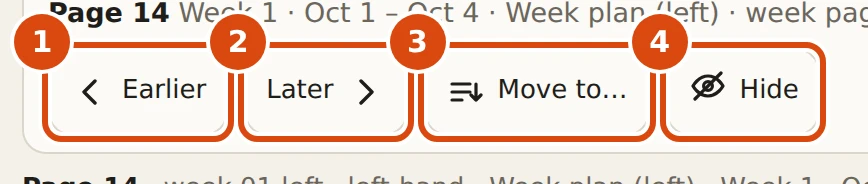
- Earlier. Moves the page one place towards the front. Alt+Left does the same.
- Later. Moves it one place towards the back. Alt+Right does the same.
- Move to. Asks where to put the page, for a longer move.
- Hide. Leaves the page out of the printed book without deleting it. Press again to bring it back.
A page that other pages point to cannot be removed without a warning, because a printed link would point at nothing. The editor tells you which pages are affected, and Undo brings it back.
The panel also asks which months a change applies to: all of them, or one. Use Only when one month needs an extra page and the others do not.
Library, series and your own titles6 min
Two levels sit above the Book: the Library, where all your books live, and a Series, a set of books that share defaults and a number order.
Press Library in the zoom row (or L). You see a shelf of covers. A series is drawn as a stack. A book on its own is a single cover. The covers are the real title page of each book.
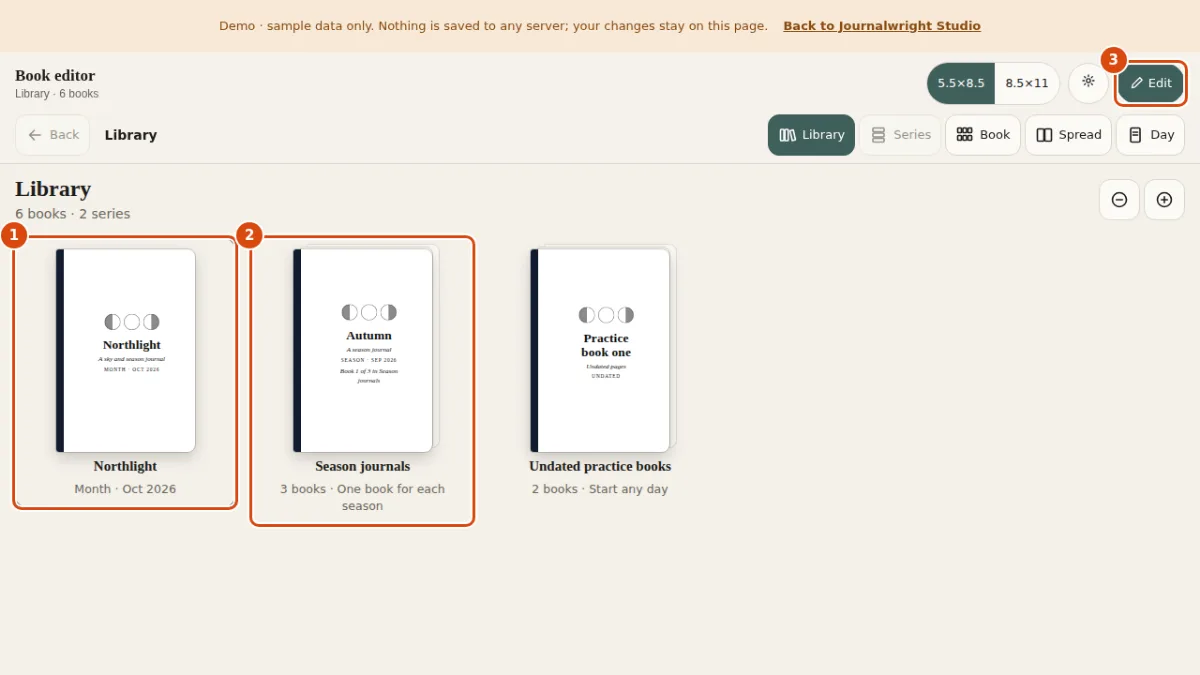
- A single book. A book on its own. Press it to open it.
- A series. A stack of covers: books that belong together. The line under it says how many books it holds. Press it to see them in order.
- Edit. Switches the shelf to edit mode, where the controls in the next pictures appear. Press E on a keyboard.
Press a cover to open it. A series opens to its books in order, as Book 1, Book 2 and so on. A library with only one book skips the shelf and opens straight to the book; the Library button still shows the shelf. A book that is on its own has no Series level above it.
Edit the shelf
Press Edit. The toolbar gains the buttons below, and every cover gets its own controls.

- New book. Opens the Book settings sheet for a new book. Nothing is added until you press Save.
- New series. Opens the Series settings sheet for a new, empty series.
- Undo. Takes back the last change to the library, up to 40 steps. It is greyed out until there is something to undo.
- Export. Saves the whole library as a file, library.json.
- Import. Reads a library file and, after a question, replaces the library with it.
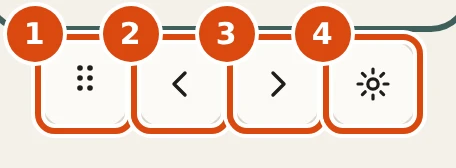
- Grip. Drag the cover to a new place on the shelf.
- Earlier. Moves it one place to the left. This is the keyboard and phone way to reorder.
- Later. Moves it one place to the right.
- Settings. Opens the settings sheet for this book (or series).
Give a book its own title
Press a book's Settings button. A sheet opens at the side (at the bottom on a phone). A book has its own title, subtitle and spine title, so a book in a series does not have to carry the series name. The sheet also holds the series it belongs to, its length, first month, edition, cover style and modules. A setting you leave alone says where it comes from: "Same as the series (Season)" or "Same as the default (1)". Press Save, or Cancel to change nothing.
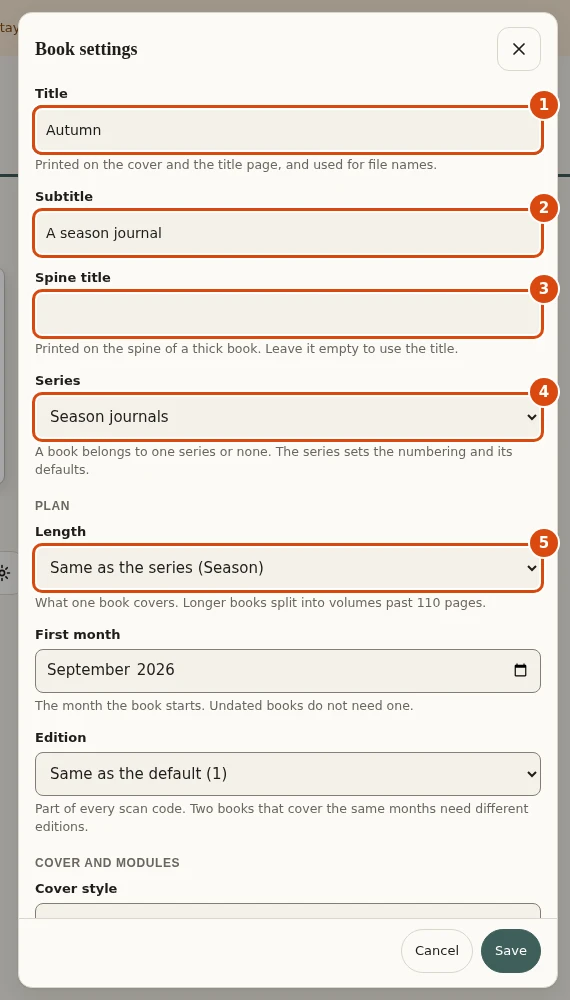
- Title. This book's own title: the cover, the title page and the file names use it. Required.
- Subtitle. The line under the title. Optional.
- Spine title. A shorter title for the spine (40 characters at most). Leave it empty to use the title.
- Series. Which series the book belongs to, or none.
- Length. Says "Same as the series (Season)" until you choose a length of its own. A choice here wins over the series.
The cover redraws with the new title, and the series line, "Book 1 of 3 in Season journals", comes from the book's place in the series.
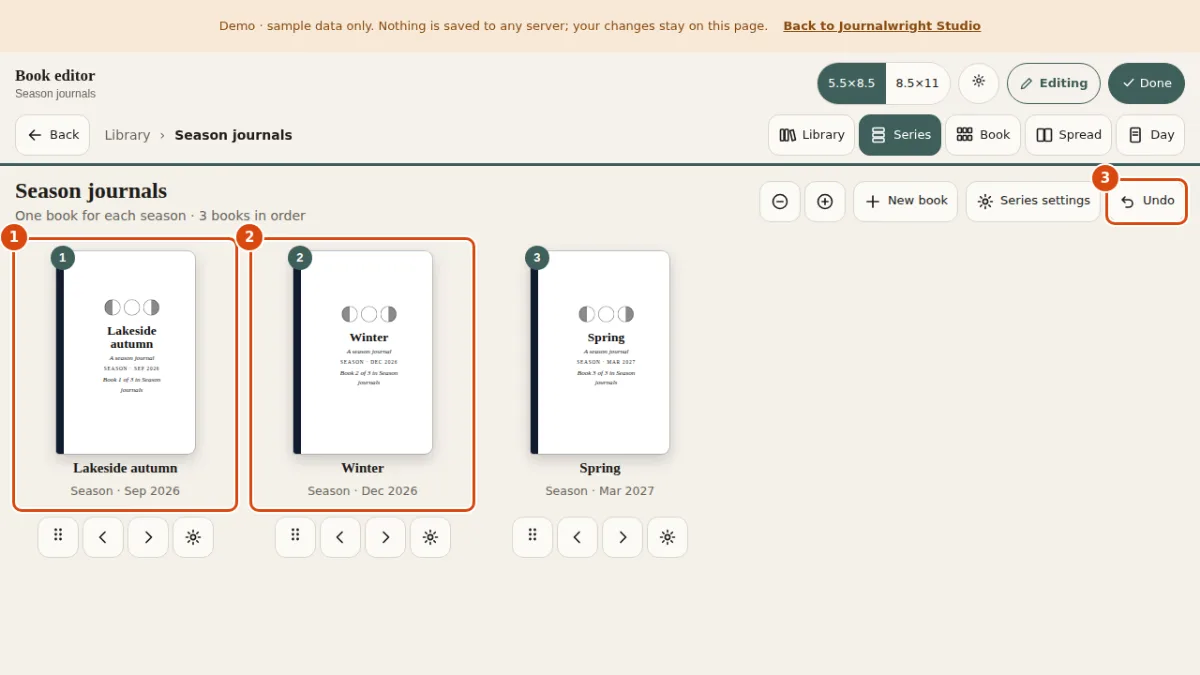
- Renamed book. The cover is the real title page. It shows the new title and the series line, "Book 1 of 3 in Season journals".
- Next book. Books are numbered by their place in the series.
- Undo. Takes the rename back.
Series defaults
Press a series' Settings button. The sheet holds the series title and subtitle, its books in order (use the arrows, or drag the grip; the order is the numbering), and the defaults every book takes unless it sets its own: length, Keeper, closing page, edition, cover style and which modules are on. Two checkboxes put the series line on the cover and on the title page.
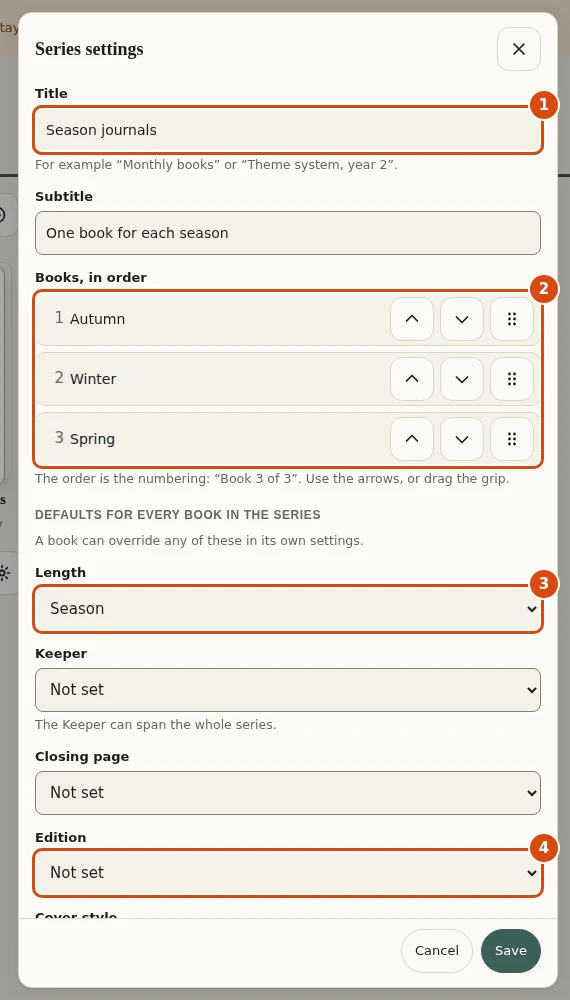
- Title. The series name, shown on the shelf. Required.
- Books, in order. The order is the numbering: Book 1 of 3, Book 2 of 3. Use the arrows or drag the grip.
- Length default. What one book covers (a month, a season, a year, undated). Every book in the series takes it unless its own settings say otherwise.
- Edition default. The edition number every book takes by default. It is part of every scan code.
Duplicate makes a copy (a series copy brings a copy of each of its books). Delete always asks first: for a series you choose to keep its books or delete them too. Undo, in the toolbar or in the bar at the bottom, takes a delete back; it holds the last 40 changes.
Where it is kept
- In your browser. With no account, the library lives in this browser. If the browser blocks storage, the editor says "This browser can't keep your library (its storage is blocked). Export it from Edit mode to keep a copy."
- In a file. Export saves
library.json. Import checks a file and, after a question, replaces the library. Put the file atjournal/content/library.jsonand the build reads it:KW_BOOK=<book id> node render.mjs ...builds one book of the library. - In a Studio project. When you are signed in to one, the library travels with the project's versions (chapter 13).
- In the demo. It starts from a made-up library and saves nothing.
Days that cover a spread5 min
A day can cover one page, or a whole spread: a left page and a right page treated as one canvas.
Open a day and press Edit (chapter 4). At the top of the block list is a box called This day covers.
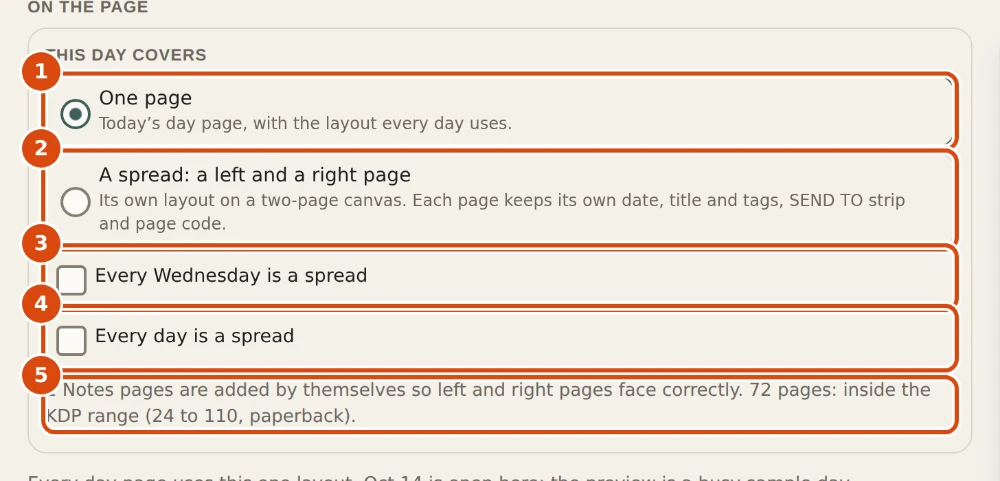
- One page. The usual day page. This is the default.
- A spread. This one day gets a left page and a right page on a two-page canvas.
- Every weekday. Makes every day that falls on this weekday a spread. The label names the weekday of the day you are on.
- Every day. Makes every day page in the book a spread.
- Page count. What the choice does to the book: Notes pages added by themselves, the page total and whether it is inside the KDP range.
- Press A spread: a left and a right page to make this one day a spread.
- Or tick Every Wednesday is a spread (it names the weekday of the day you are on) to make every day on that weekday a spread, or Every day is a spread for all of them. The most specific choice wins.
- Read the note under the choices. It says how many Notes pages were added by themselves and gives the new page count with the KDP check.
The preview becomes a two-page canvas: 8 columns by 24 rows, with the fold after column 4. The two pages are always laid out together, so a spread is always on the grid and the Flow and Grid switch is not shown. Drag a block anywhere on either page, or use its steppers; a block stays wholly on one page and nothing crosses the fold. A move that would break a rule is refused and the editor says why.
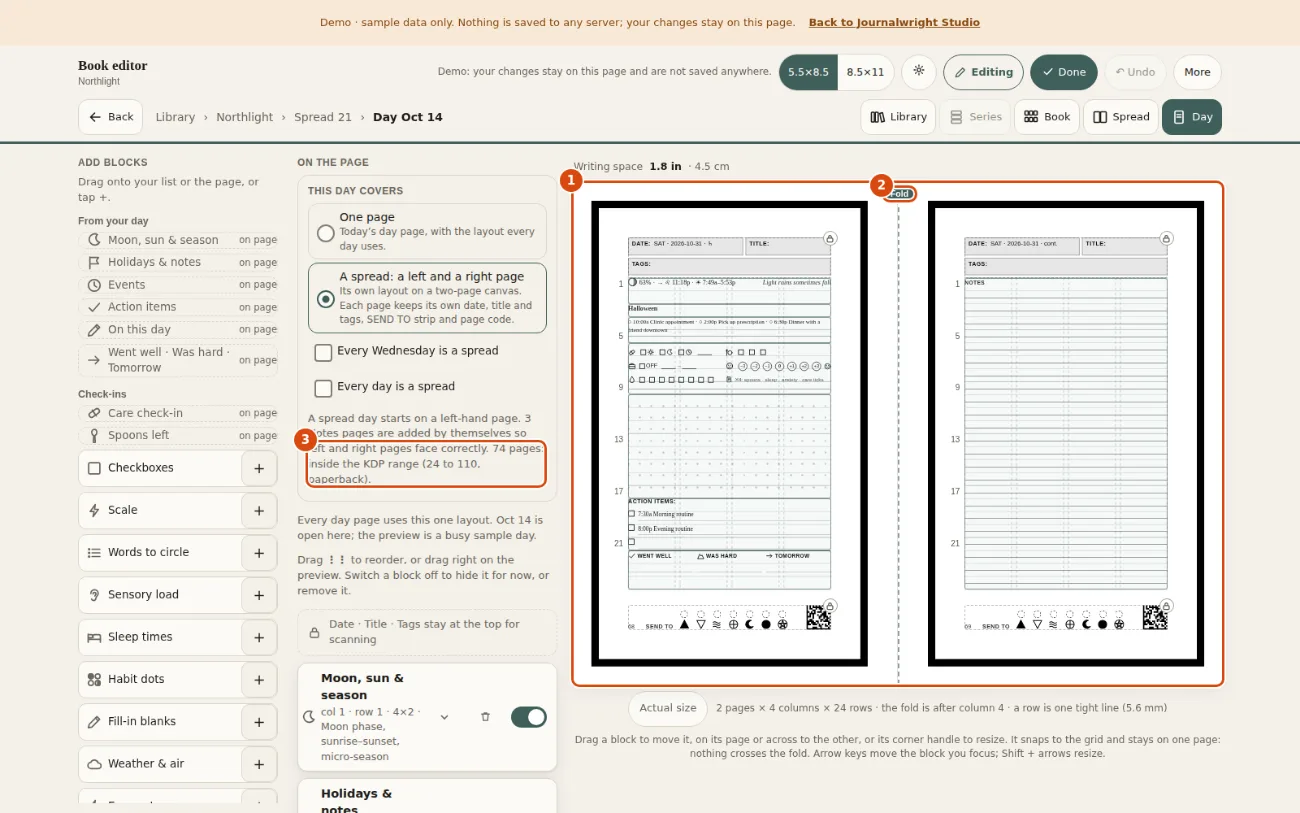
- Two-page canvas. A left page and a right page, each with its own date, title and tags, SEND TO strip and page code. The right page's date says "cont.".
- Fold. The fold sits after column 4. A block stays wholly on one page: nothing crosses it.
- KDP note. The page count after the change and whether it is inside the KDP range: 24 to 110 for a paperback.
What it does to the book
- It opens on a left page. A spread day always starts on a left-hand page, so when the page before ended on the left, a Notes page is added to pad it. Page counts, hardcover padding, volumes and the 110-page limit follow. The KDP note under the choices says whether you are still in range: 24 to 110 pages for a paperback.
- Each page keeps the scan zones. Both pages have their own DATE, TITLE and TAGS header (the right page's date says "cont."), frame, SEND TO strip and page code. The right page's id is
day.DATE.cont. - Your layout is saved with your day layout (
daypage.json, asspread) only when it differs from the starting spread: the day on the left and a ruled page on the right. Which days are spreads is saved in the book (book.json), and the Pages panel in the Book view shows it on the Day pages row. - An undated book honours "every day" only; there are no weekdays or dates to pick.
On a phone
The canvas shows one page at a time, with a Left page and Right page switch above it.
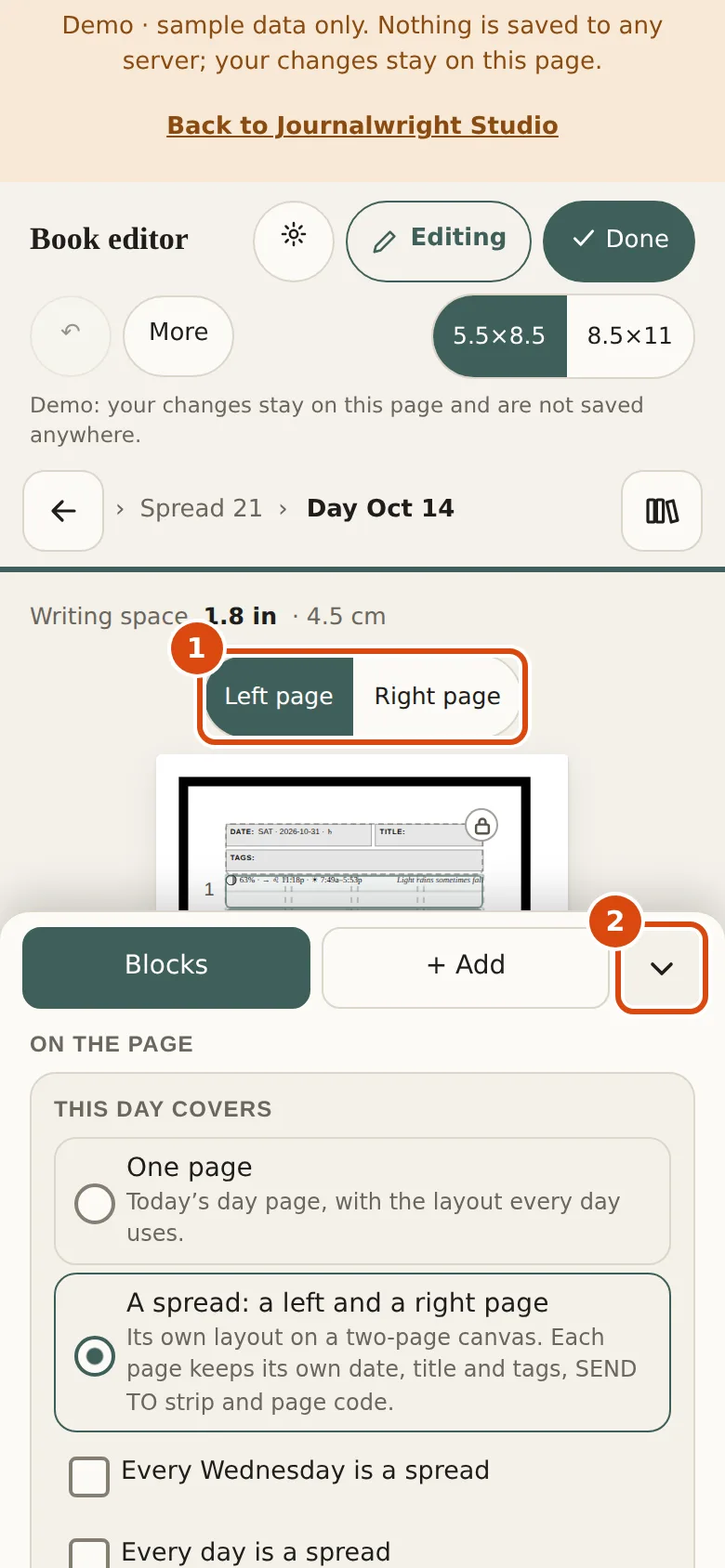
- Left page, Right page. On a narrow screen the editor shows one page of the spread at a time. This switch picks which.
- Sheet handle. Collapses or opens the blocks sheet.
Not built yet: a one-page day with a different layout from the others, a block that runs across the fold, and rearranging a spread for large print. While you are on a spread day, the print Settings switches are disabled with the line "Open a one-page day to change these: they apply to every day page, spreads included."
Notes, blank and Collection pages from blocks5 min
A Notes, blank or Collection page is built from the same blocks as a day page, on a grid of its own.
Three page types are made of blocks. Notes and Collection pages keep the DATE, TITLE and TAGS header at the top and have 4 columns by 24 rows. A blank page has no header, so its grid is 4 columns by 27 rows. Blocks that read a day (the moon and sun, holidays, events, the daily fact, the rotating prompt, the 24-hour line, the week strip) and the SEND TO block are day-page only, so they are not offered. The scan frame, the SEND TO strip and the page code are the page's own and never move.
Add a page
- Open the Book view and press Edit, then open the Pages panel.
- Scroll to the bottom of the panel. Under Where, choose the page the new one goes before.
- Press Add a Notes page or Add a Collection page. The page is added and selected.
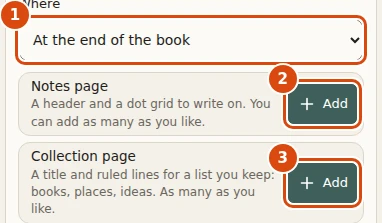
- Where. Where the new page goes: before any page of the book.
- Add a Notes page. Adds a Notes page: the date, title and tags header over a dot grid. You can rename it and fill it with blocks.
- Add a Collection page. Adds a Collection page: a title over ruled lines, for a list you keep adding to.
A selected page you added gets a toolbar under the canvas with Edit blocks, Duplicate, Remove and a Title box. Pages that came with the book cannot be removed, only hidden; the Notes pages the book adds by itself to keep spreads facing have no controls at all.

- Edit blocks. Opens this page in the day page editor so you can build it from blocks.
- Duplicate. Makes a copy of the page, blocks and all, right after it.
- Remove. Takes the page out of the book. Pages that came with the book can only be hidden.
- Title. The name printed in the title box of the page. 40 characters at most.
Edit its blocks
Press Edit blocks. The page opens in the day page editor: palette, option panels, Flow and Grid, Undo and the writing-space meter all work as in chapter 4. You can also open any Notes, blank or Collection page by pressing Edit on its page view, or with the address #page/<page id>/edit. A Notes or Collection page must keep its Writing space block; a blank page may have none.
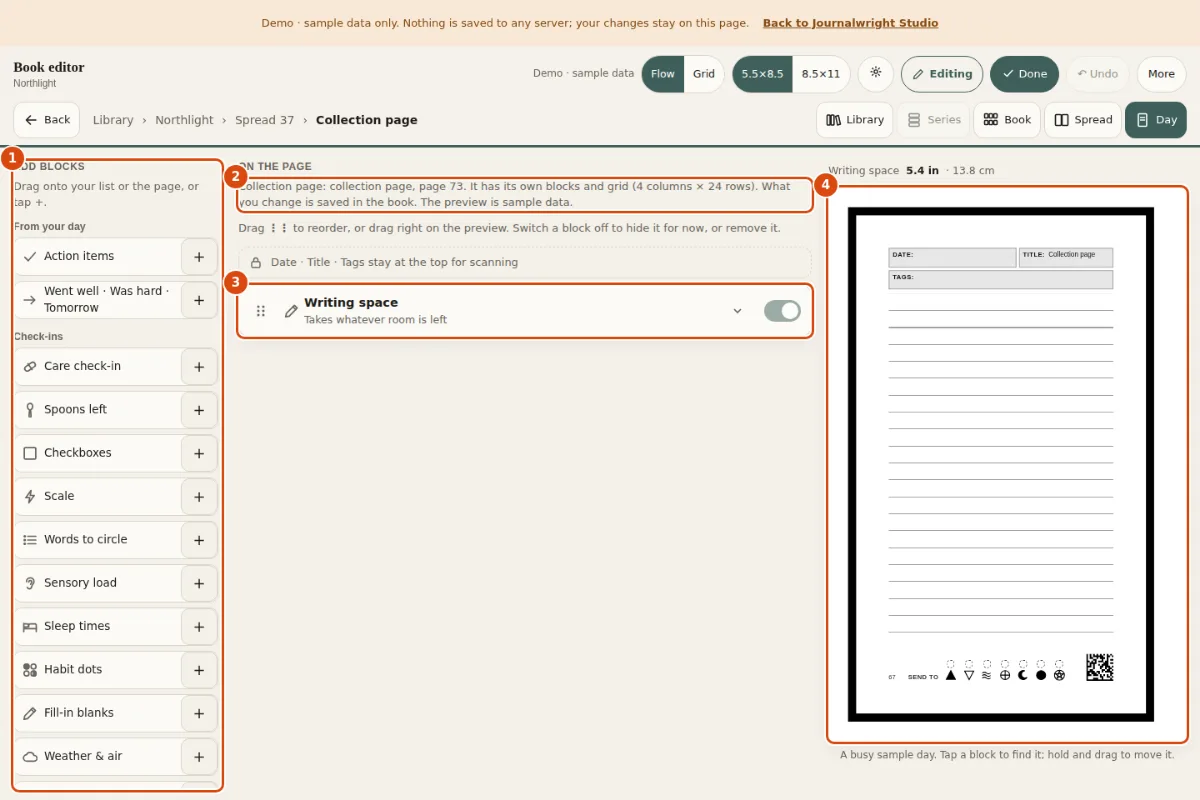
- Add blocks. The same palette as the day page, minus the blocks that read a day (moon, events, the rotating prompt) and SEND TO.
- The page's own grid. Says which page this is and its grid: 4 columns by 24 rows. Changes are saved into the book.
- On the page. The page's blocks, top to bottom. A Collection page starts with only a Writing space.
- Live preview. The page as it prints. The header and the page code are fixed.
Every change is saved into the book, the same place the page organiser saves to. The preview uses sample data. The blank page that comes with the sample book works the same way:
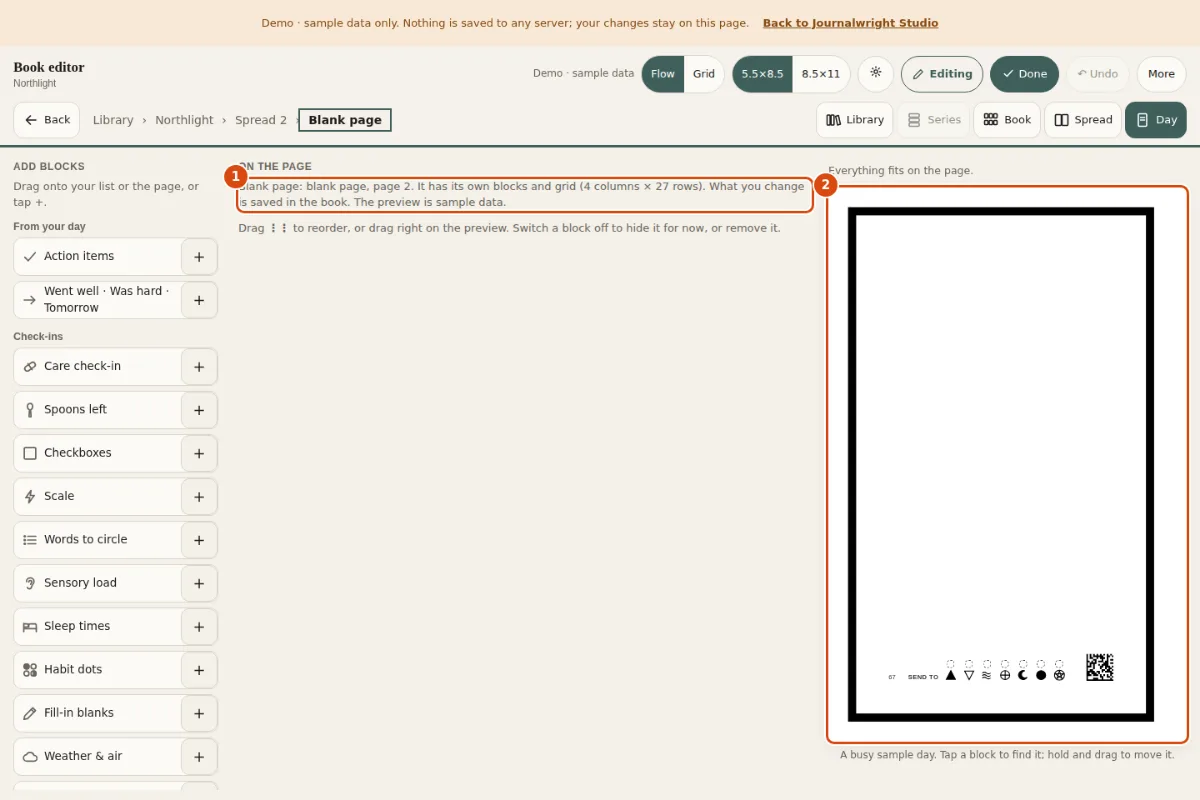
- Blank page grid. A blank page has no header, so its grid is 4 columns by 27 rows.
- Preview. Empty until you add blocks. The frame, SEND TO strip and page code stay.
Not built yet: a SEND TO block or scan settings for these pages, and the month, week, review and back-matter pages as blocks. Those pages stay as they are. A page you leave unedited prints exactly as before.
Puzzles: word search and crossword4 min
Two blocks that draw a puzzle on the page, for paper only.
The Puzzles group in the palette has a Word search and a Crossword. They work on day pages and on the block pages of chapter 9.
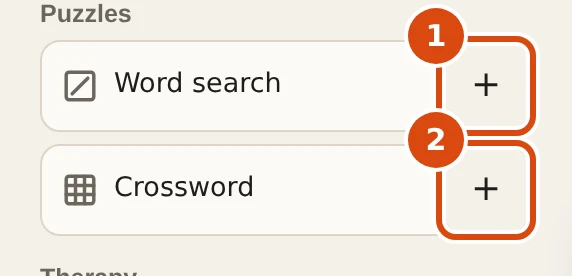
- Word search +. Adds a Word search block at the end of the list.
- Crossword +. Adds a Crossword block at the end of the list.
Press the + of one. The block joins the list; press its name to open its options.
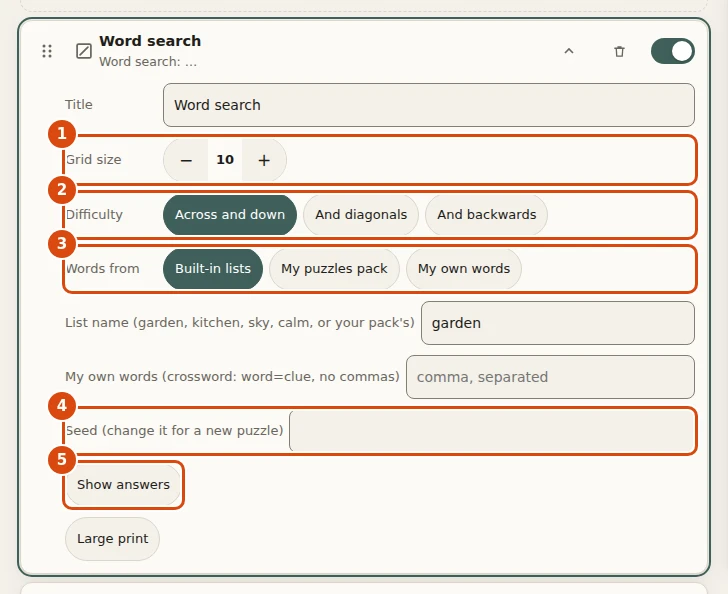
- Grid size. Squares per side. Bigger grids hold more words and need more of the page.
- Difficulty. Easy hides words across and down only, medium adds diagonals, hard adds backwards words.
- Words from. Built-in lists, your own puzzles pack (the print build reads it), or words you type.
- Seed. The same seed on the same page gives the same puzzle on every reprint. Type something else for a different one.
- Show answers. Prints the solution into the puzzle. Leave it off for a puzzle to solve.
- Grid size (word search) or Largest grid (crossword). Bigger grids need more of the page.
- Difficulty. Word search: easy hides words across and down, medium adds diagonals, hard adds backwards words. Crossword: fewer short words, more words, or most and longer words.
- Words from. Built-in lists (garden, kitchen, sky and calm), your own puzzles pack, or your own words. For your own words, type them separated by commas; for a crossword write each as
word=cluewith no commas. With too few usable words the block falls back to a built-in list instead of printing an empty puzzle. - Seed. The puzzle is made from the page, the block and the seed, so the same page prints the same puzzle every time you reprint. Type a different seed for a different puzzle.
- Show answers prints the solution. Large print makes the cells and letters bigger.
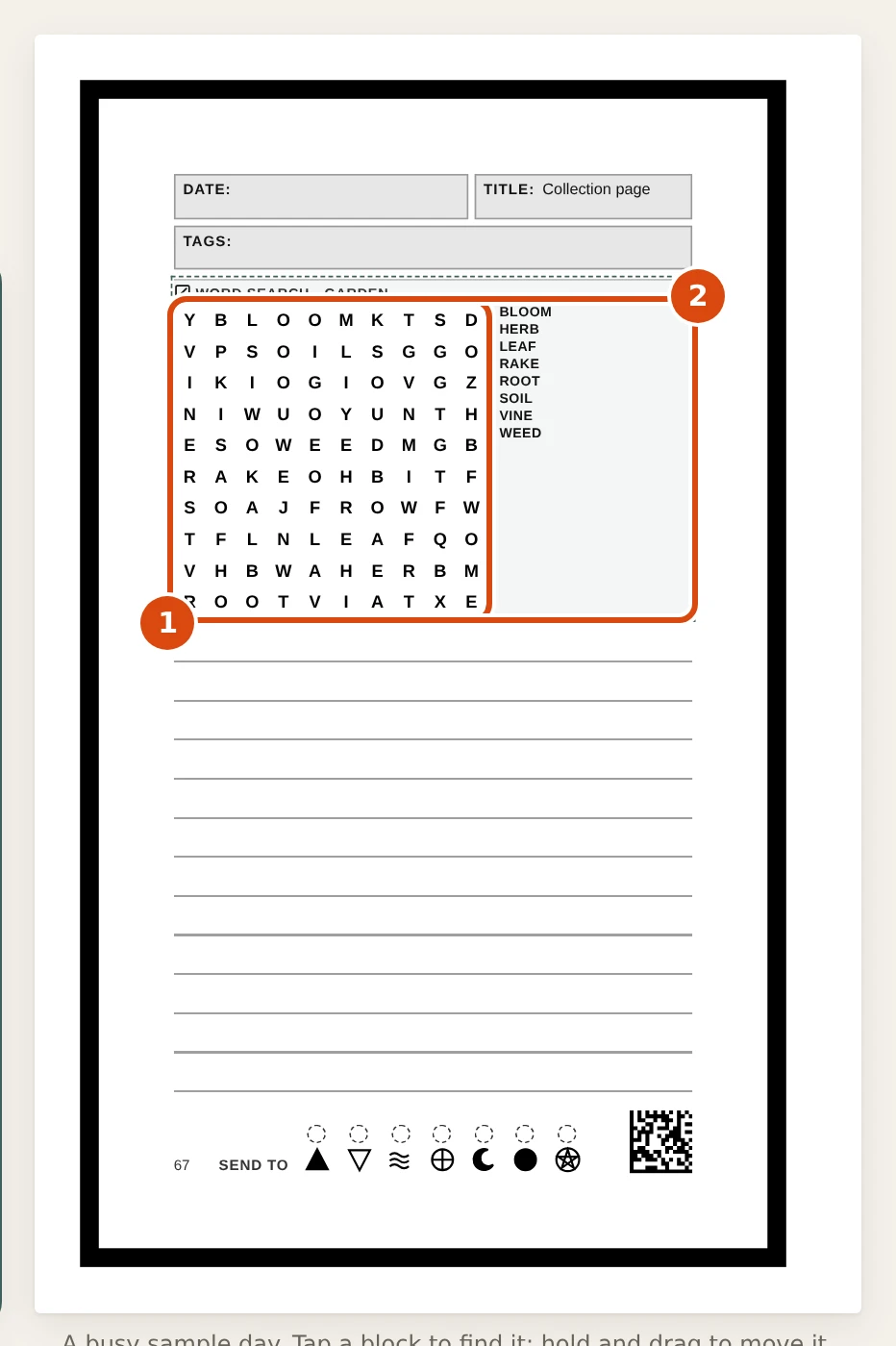
- Letter grid. The words are hidden across and down. Each is in the list beside the grid.
- Puzzle block. The whole block: the title line, the grid and the word list. The grid is drawn as shapes and text, so it prints sharp.
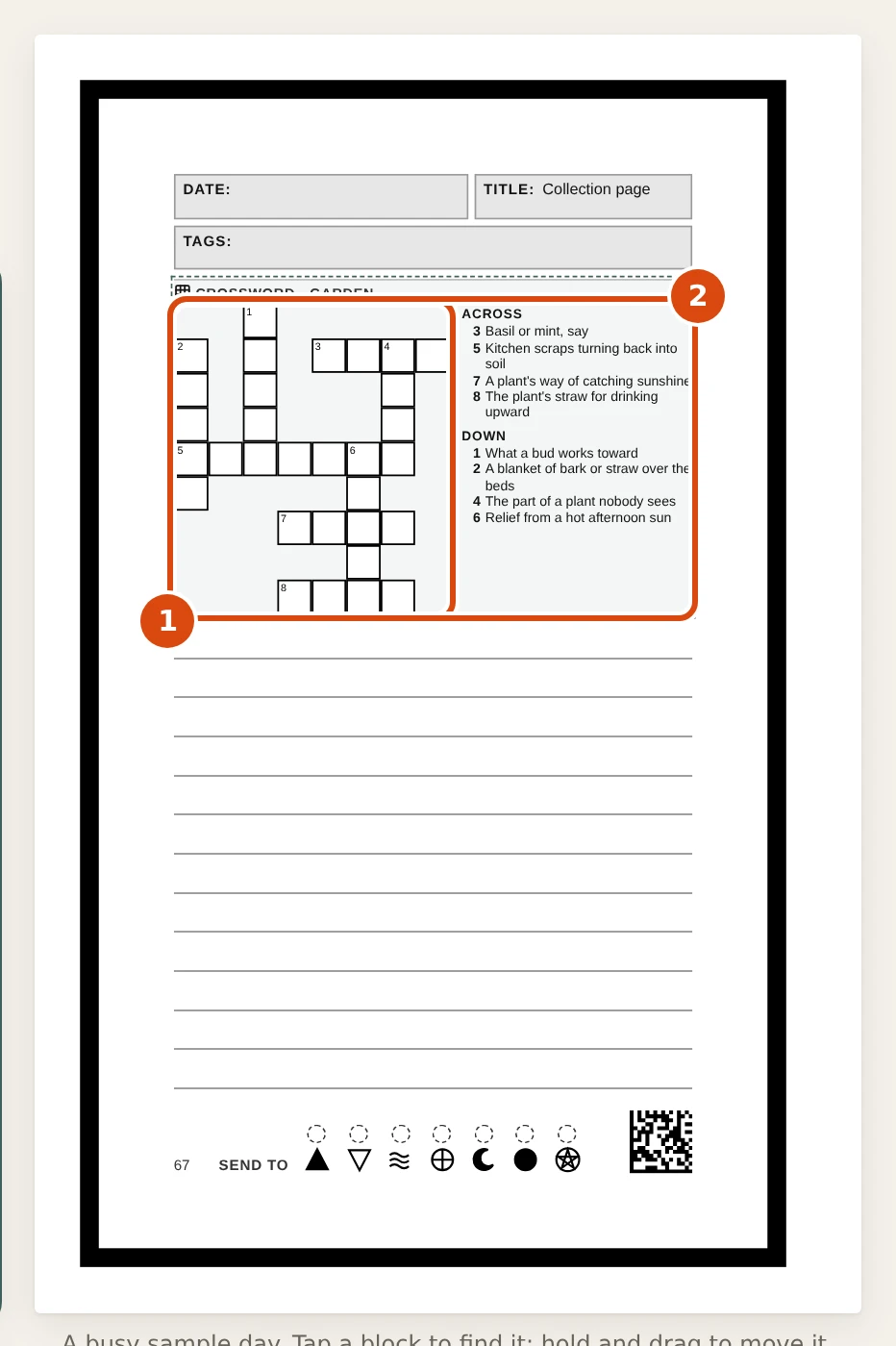
- Crossword grid. Numbered squares. The answers are blank unless you switch on Show answers.
- Clues. Across and Down clues, numbered like the grid. The clues are plain text next to the grid.
The grids are drawn as shapes and real text, so they print sharp and pass the font check. Each grid has a text description for screen readers and the word list or the clues are ordinary text.
Two limits to know. The editor preview always uses the built-in lists: your own puzzles pack (paths.puzzles in the profile, chapter 3) is read by the print build only, so choose it, then check the real PDF. And a puzzle needs room: both on one page overflow it (chapter 17). Not built yet: a separate answer-key page at the back, whole-page and spread puzzles, and other alphabets than A to Z. There is no puzzle solving on the X4.
Set scan options2 min
Every page carries a small code so a scan can tell which page it is. These are the choices that go with it.
The date, title and tags header, the 9 pt frame, the send-to strip and the page code are the scan zones. You can move the code and switch it off, but the zones themselves stay put so a scan always knows where to look.
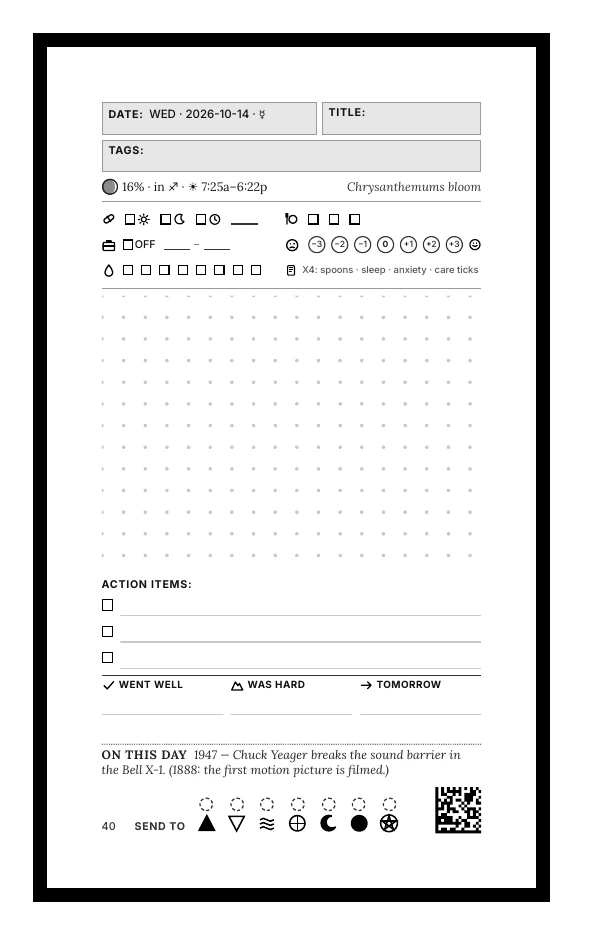

- Scan settings. Opens the scan marks for every day page: the border, the code, where it sits and how big it is. The header (date, title, tags) always stays at the top.
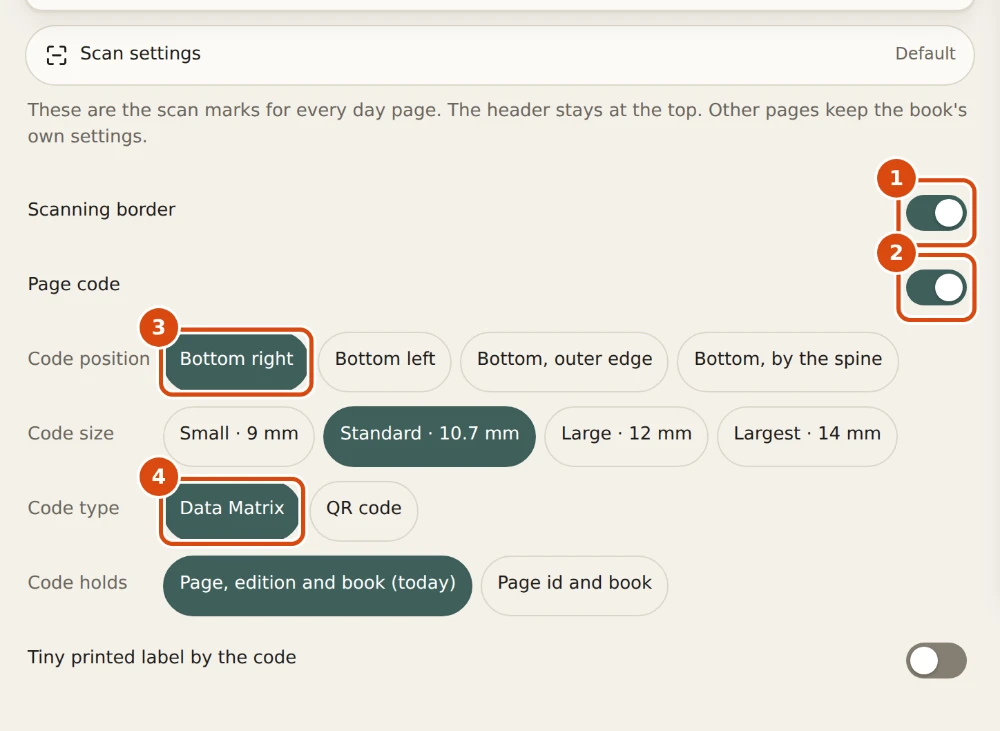
- Scanning border. The black frame the scanner uses to find the page edges. Keep it on if you will scan.
- Page code. The small square code that says which page this is. Switch it off if you will never scan.
- Code position. Bottom right, bottom left, outer edge or by the spine. The send-to strip stays where it is.
- Code type. Data Matrix is smaller and more tolerant of printing. QR is easier for a phone camera.
Personal pages that hold password hints, such as the Keeper in the full project, never get scan codes.
Accessibility options5 min
Two print options for the whole book, and what the editor itself does for keyboards, screen readers and low vision.
Print: large print and high-contrast ink
Both are off by default, and with both off the book prints exactly as before. Open the Settings button in the top bar.
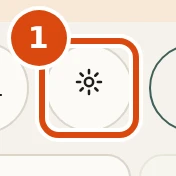
- Settings. Opens the Settings sheet, where the print options for the whole book live.
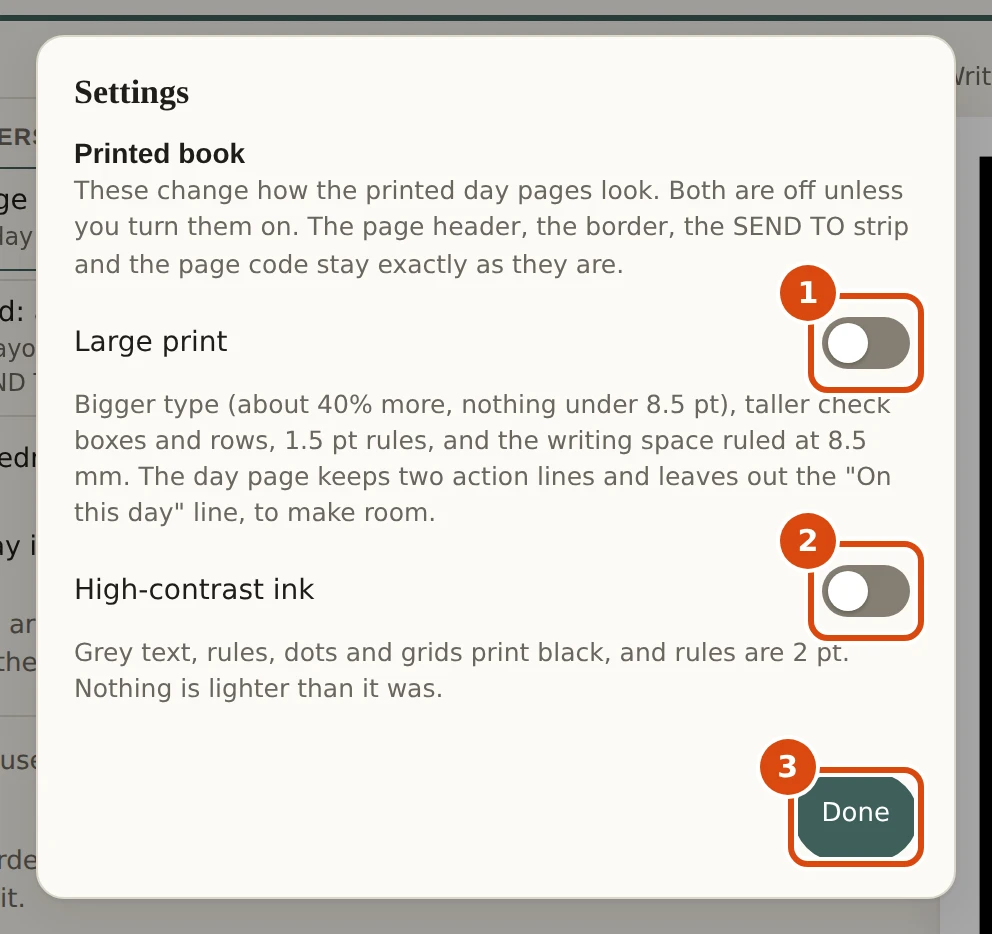
- Large print. About 40% bigger type (nothing under 8.5 pt), taller check boxes and rows, darker 1.5 pt rules and the writing space ruled at 8.5 mm.
- High-contrast ink. Grey text, rules, dots and grids print black, and rules are 2 pt. Nothing gets lighter.
- Done. Closes the sheet. The choice is already kept.
- Large print. Small type about 40% bigger (nothing under 8.5 pt, headings less, page titles not at all), taller check boxes, mood marks and rows, 1.5 pt rules, and the writing space ruled at 8.5 mm instead of dots. To make room the day page keeps two action lines and leaves out the "On this day" line. The mood scale has 5 steps, water 6 boxes, meals 3.
- High-contrast ink. Light and mid greys (text, rules, dots, grids, borders) print black or near black, and rules are 2 pt. Fills stay, and nothing is lighter than before.
- It never moves the scan zones: the DATE, TITLE and TAGS header, the border, the SEND TO strip and the page code stay as they are. Both work on 5.5 by 8.5 and on 8.5 by 11, and the choice is stored with your layout (
daypage.json,print) or in the profile (print).
The preview changes as soon as you switch one on.
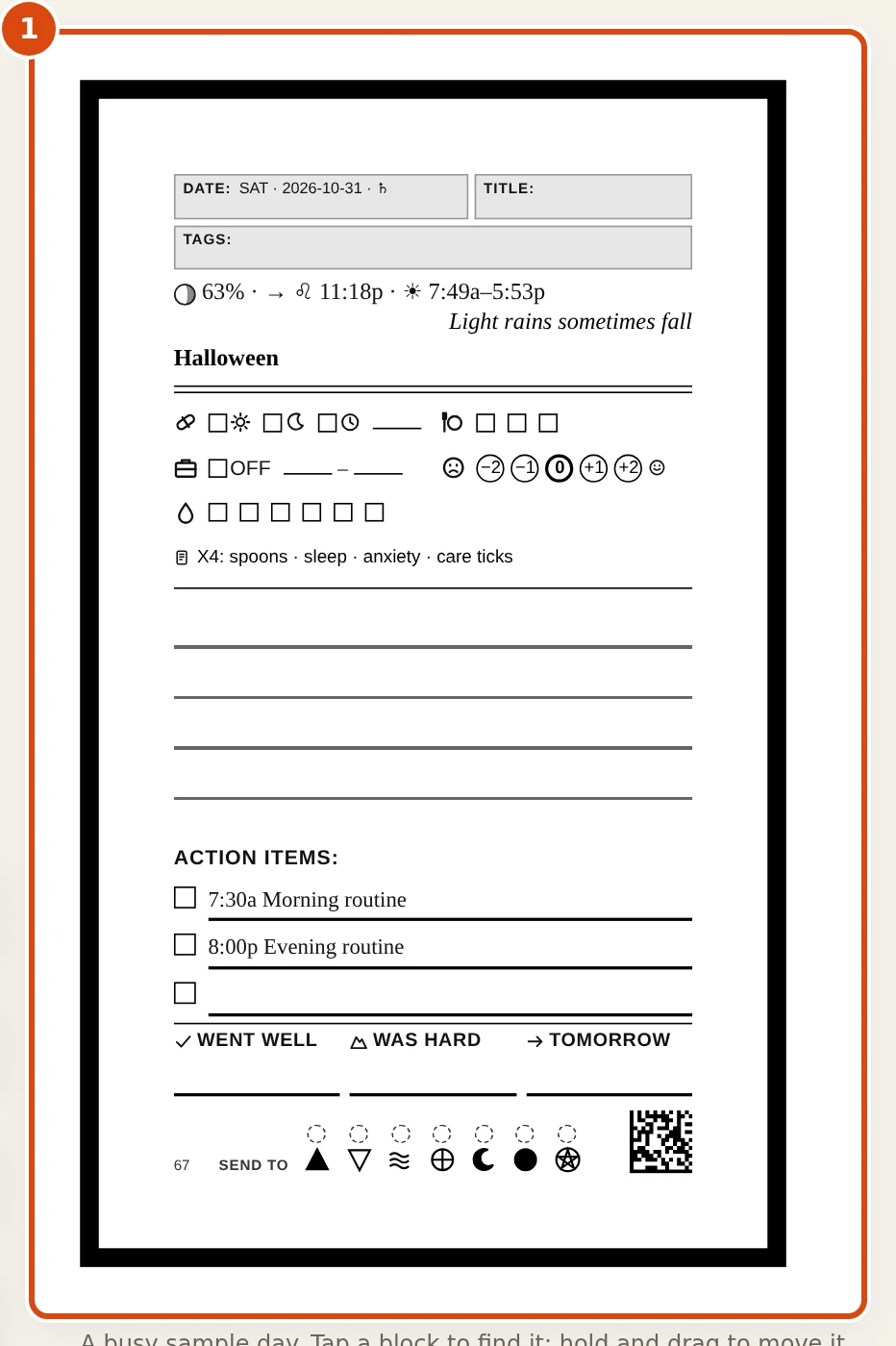
- The page. The preview changes as soon as you switch an option on. Compare it with the page in chapter 4.
Read this before you rely on it. Large print makes the page fuller, and the preview uses a busy sample day, so it may say "Too full" even though a real day has less on it. The print build is what counts: a page type whose content cannot hold the bigger type steps down in small steps until every page fits (the build says so, for example "large print: support 1x"), so nothing is clipped and page counts do not change. A Grid layout stays as you placed it, and check.mjs names a block that does not fit. If your profile already has an option on, the switch is locked and says "On in profile.json: change it there." Not built yet: dyslexia-friendly type, handedness, low-clutter pages, a Grid layout that adjusts itself, and large-print thumbnails in the Book view.
In the editor
- Keyboard. Every control can be reached with Tab and shows an outline where you are. A block's grip moves it with the Up and Down arrows. E edits, Esc goes up a level or finishes editing, Alt+Up and Alt+Down change level, Ctrl+Z undoes.
- Screen readers. Controls have names. Changing level announces "Now at: ..." and moves focus to the current crumb. A warning such as "Too full" is announced once when it appears. The puzzle grids carry a text description.
- Touch. Controls are 44 pixels or more, with one known exception below. At 390 pixels wide the page does not scroll sideways.
- Colour and motion. Light and dark follow your device. A "more contrast" setting on the device strengthens the colours. If you asked for reduced motion, level changes and drag animations are instant.
- Language. The editor is in English only today. Its words are all in one catalog, ready for translation, but there is no language switcher yet.

- Focused grip. Tab moves through every control in order and a visible outline shows where you are. On a grip, Up and Down arrows move the block.
The project checks the editor with an automated test (journal/editor/test-a11y.mjs: axe, target sizes, reflow, focus, announcements, reduced motion). It lists three known gaps: the Blocks, + Add and Preview tabs on a phone do not move with the arrow keys; a block moved by keyboard in Grid mode is not announced; and one-row blocks in Grid mode are 21 pixels tall (the grid cell is the layout), though the steppers and the keyboard do the same job.
The X4 has its own text size and contrast settings (chapter 16).
Save, share and keep versions4 min
Your work is kept in your browser. Download it when you want a copy, and save a version when you want to be able to go back.
The editor saves a draft in your browser as you work. A download is a copy you can keep, email or load on another computer.
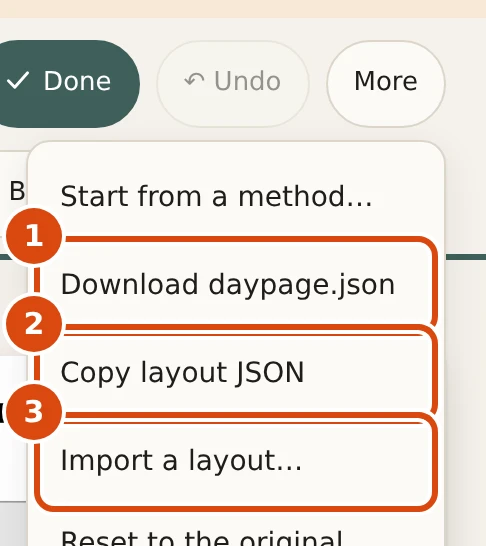
- Download. Saves daypage.json: your layout, as a file. Keep it, or send it to someone.
- Copy. Copies the same layout as text to paste anywhere.
- Import. Loads a layout file you saved earlier or got from someone else.
A version is a named snapshot with a message. Use them like save points. They work with no account: until you sign in to a Studio server, they live in your browser.
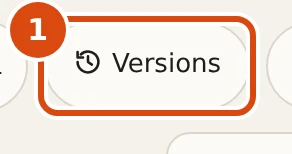
- Versions. Opens the history drawer. Not in the public demo, which saves nothing.
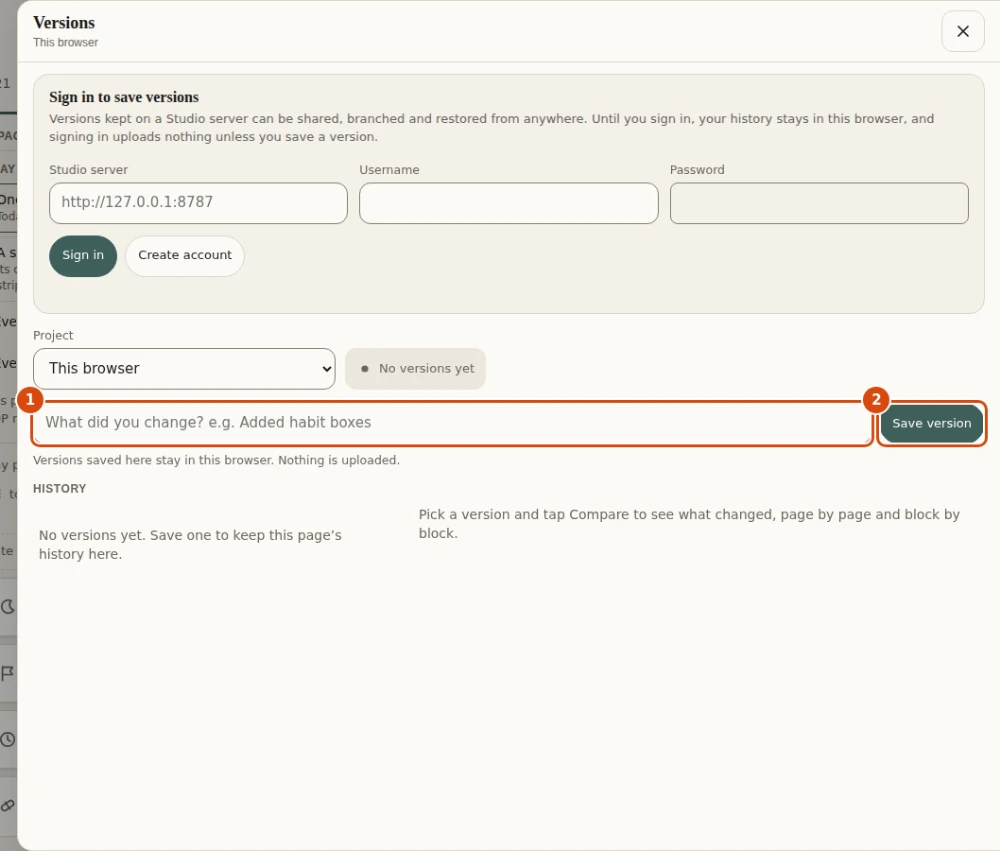
- What changed. A few words for future you, such as Added habit boxes.
- Save version. Keeps the page as it is now. Do this before you try something risky.
Save a second version after you change something, then compare the two.
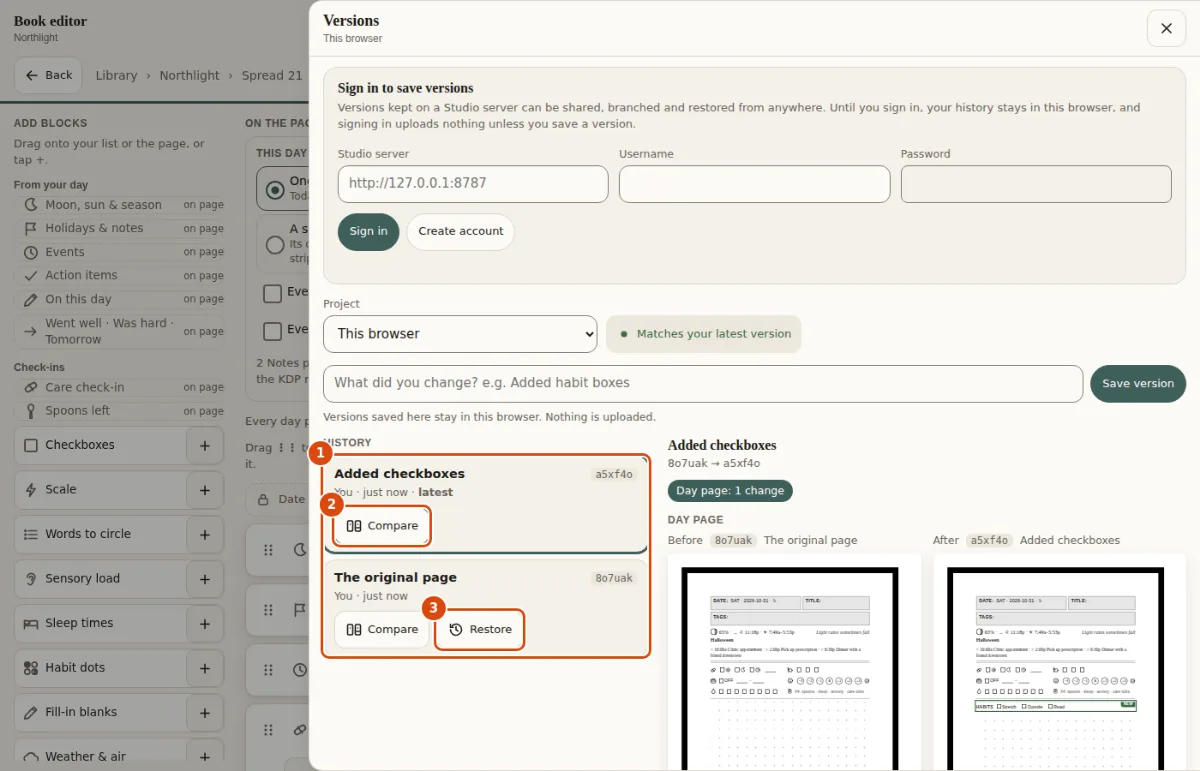
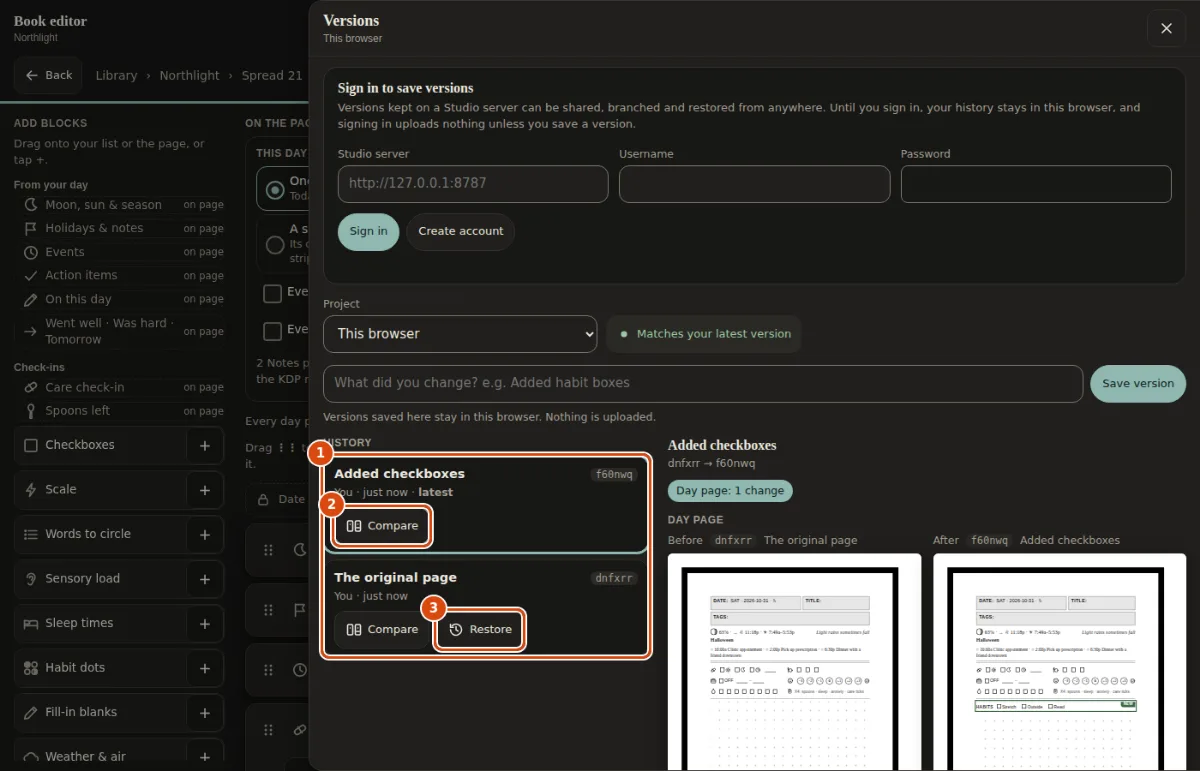
- History. Every saved version, newest first.
- Compare. Shows what changed against the version before it, and marks the changed blocks on the page.
- Restore. Brings an older version back as a new one. Nothing is lost: the newer versions stay in the history.
If you sign in to a Studio server (studio/README.md), the same drawer also gives you branches, forks and proposals, so more than one person can work on a book. Private pages, calendars and profile secrets are never put in a version. A named, frozen copy of a version is a release (chapter 14).
Releases and reusable pages4 min
A release is a named, frozen copy of a saved version, so a printed book can always be traced back to what it was made from.
Releases need a Studio server and a project on it (chapter 13). The public demo and a guest's browser-only versions have none: until you open a server project the Releases section is not shown. To try it, build the editor (chapter 1), run cd studio && npm start (Node 22.13 or newer, nothing to install) and open http://127.0.0.1:8787/. Press Versions, create an account, then choose New project on my account (or Move it to my account). You are that project's owner.
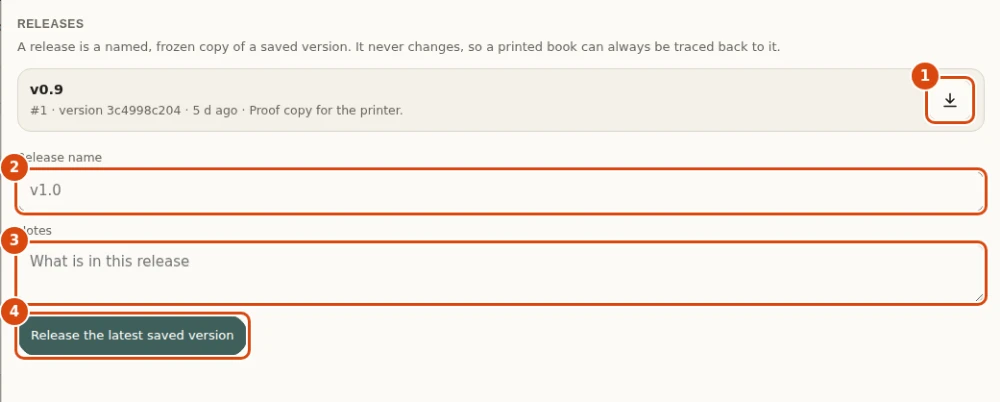
- Download. Saves this release as a file, release-v0.9.json: the frozen snapshot and its manifest.
- Release name. A name you choose, such as v1.0. A name that already exists is refused.
- Notes. What is in this release. Shown in the list.
- Release. Freezes the latest saved version of the book under that name. It never changes afterwards.
- Save a version of the book first (chapter 13). A release is made from the latest saved version, never from your unsaved draft.
- In the Releases section of the Versions drawer, type a Release name, such as v1.0, and optional Notes.
- Press Release the latest saved version. A name that already exists is refused with the server's reason, and nothing changes.
- Press a release's download button to save
release-NAME.json.
Only a project's owner can make a release. Anyone who can read the project sees the list and can download one, and for a public project that includes people with no account. A release never changes: the server refuses to edit or delete one. It holds the commit, the print settings, public pack references and a manifest with the hash of the two files the build reads (content/book.json and daypage.json), so a later build can be proven to come from exactly that release. Before it is made, the server checks that nothing private is in it, and if it finds something, nothing is written.
What a release is not. It does not store a PDF: the Books workflow builds PDFs from the exported files, and the manifest ties a PDF to the release. There is no way to delete or rename a release.
Reusable pages
The Studio also keeps a personal library of reusable pages and block layouts, which can be inserted into a book by copy, with attribution and a link to the version they came from. This has no screen in the editor yet. It is only in the server's programming interface (/api/library and /api/projects/:id/insert), so there is nothing to press in the Versions drawer. Protected pages, module pages and private content are refused, and inserting a layout into a Grid day layout is refused. Details and the list of limits are in studio/README.md.
Export a KDP-ready PDF10 min
The build writes an interior and a cover that pass the checks Amazon KDP asks for. The editor does not print: the build does.
Build one month with the sample calendar. For your own book, replace test.ics with your calendar files (they stay on your computer and are never committed).
cd journal
node render.mjs month 2026-10 test.ics          # 5.5x8.5 interior, into out/m2026-10/
SIZE=letter node render.mjs month 2026-10 test.ics   # 8.5x11, into out/m2026-10-letter/
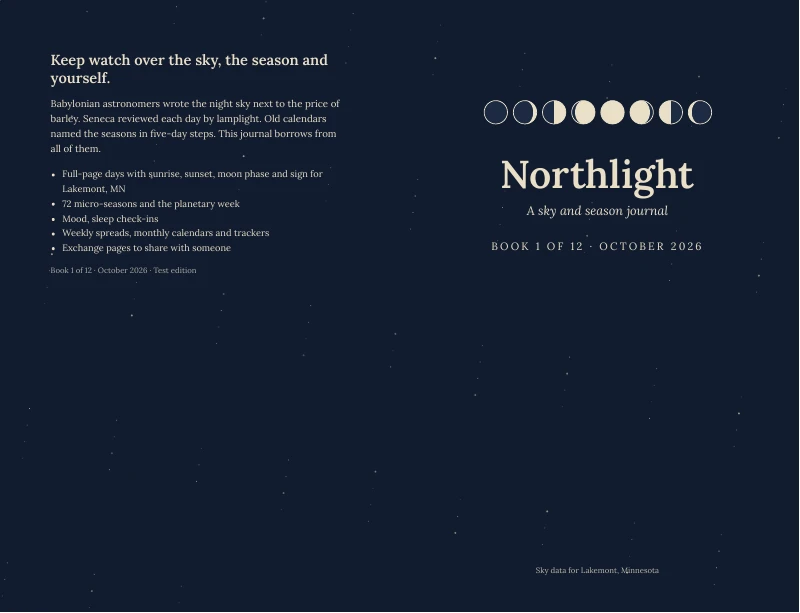
node cover.mjs month 2026-10                      # the wrap-around cover, sized to the page count
Or build every month and both sizes at once with ./build-all.sh.
Check before you upload. These are the same checks the project runs on every build:
node check.mjs m2026-10               # must print [] 0: no page overflows
pdffonts out/m2026-10/*interior*.pdf | grep "Type 3"   # must print nothing: KDP rejects Type 3 fonts
pdfinfo out/m2026-10/*interior*.pdf | grep Pages # even; paperback 24 to 110, hardcover 76 or more- Overflow:
[] 0means every page fits. Anything else lists the page numbers that spill. - Fonts: no Type 3 fonts. Emoji and odd glyphs are drawn as shapes, so there should be none.
- Pages: an even count in the KDP range. The Pages panel in the Book view shows this too.
Then, on KDP:
- Sign in at kdp.amazon.com, press Create, then Paperback.
- Fill in the details. Choose black and white interior, white paper, the trim you built, and no bleed.
- Upload the interior PDF as the manuscript and the cover PDF as the cover.
- Open the previewer and look at every page before you order a proof.
Keep proofs private: order one, never publish a book that prints your own calendar. One KDP title per design and per size. journal/KDP.md has the full walkthrough, including hardcover and the cover-width formula.
Optional: the X4 e-ink companionoptional
A small e-ink device that shows today and takes button check-ins, with no phone, no feed and no notifications.
The Xteink X4 runs the project's firmware. It shows today on its sleep screen, takes check-ins with its buttons, has a focus timer, and keeps everything on its SD card. Nothing leaves the device except over its own Wi-Fi hotspot, or an explicit sync you start on the device.
Four of its screens, in the order you meet them:
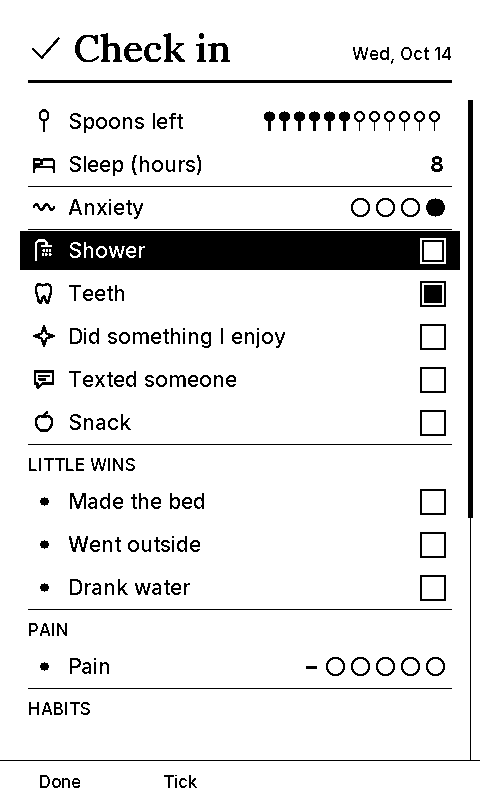
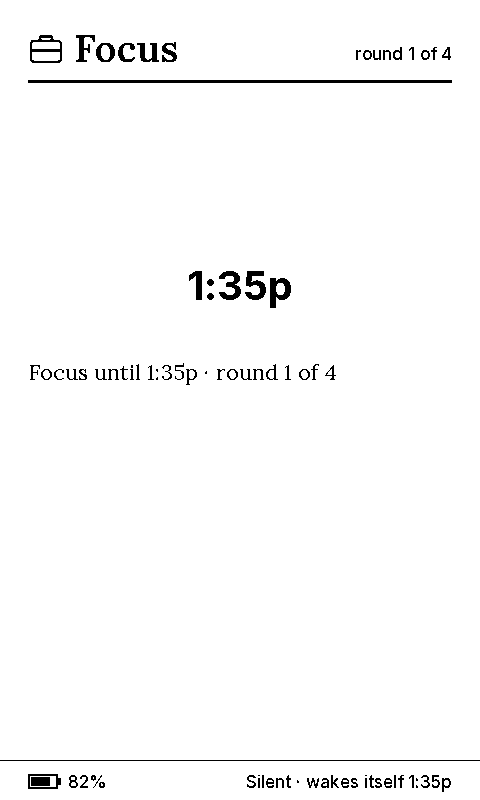
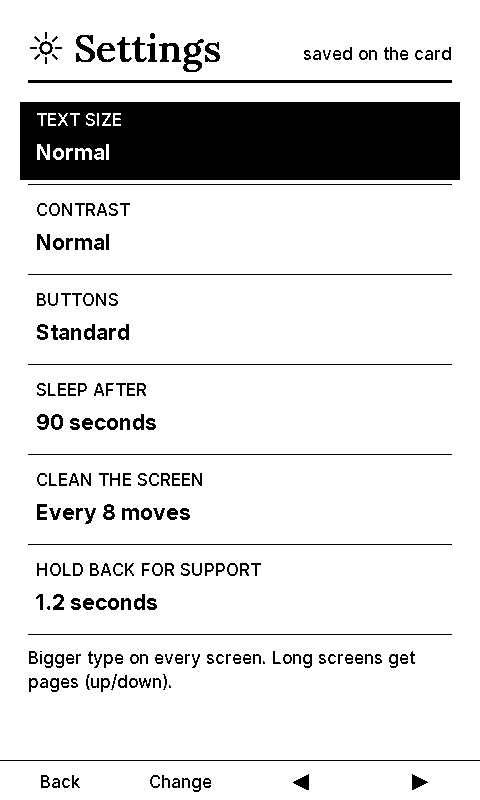
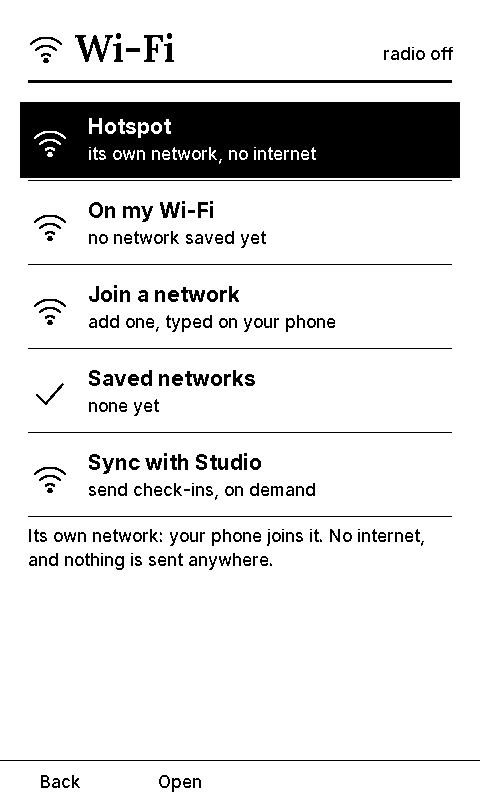
Settings are on the device: text size, contrast and button layout. To move files, open Wi-Fi and choose Hotspot. The X4 makes its own network. Join it from a phone to set the clock, download your logs and upload new books. The radio is off until you pick a row, and it goes off again when you leave the screen. Sync with Studio sends your check-in log to your own Studio account, only when you press Send. It needs the separate x4-tls firmware build: the default image shows the row, says so, and sends nothing. Sync is built but untested on real hardware.
The build makes an X4 EPUB for each month (python3 epub.py m2026-10) and the SD-card files. Setup and the firmware build are in x4/README.md.
Where it stands. The firmware compiles and every screen above renders in a computer-side preview. Bring-up on a real device (buttons, screen refresh, battery, the Wi-Fi join, a real sync) is still open work, so treat the X4 as optional and unproven on hardware.
When something goes wrongas needed
The messages you can meet, what each one means and what to press. They are the real wording from the editor and the build.
A page overflows
In the editor, the writing space number at the top of the preview warns in three steps: Getting tight, Too full for busy days and Too full: the page overflows. Switch something off or shorten a block. It reads a busy sample day, so judge by the message, not only the number.
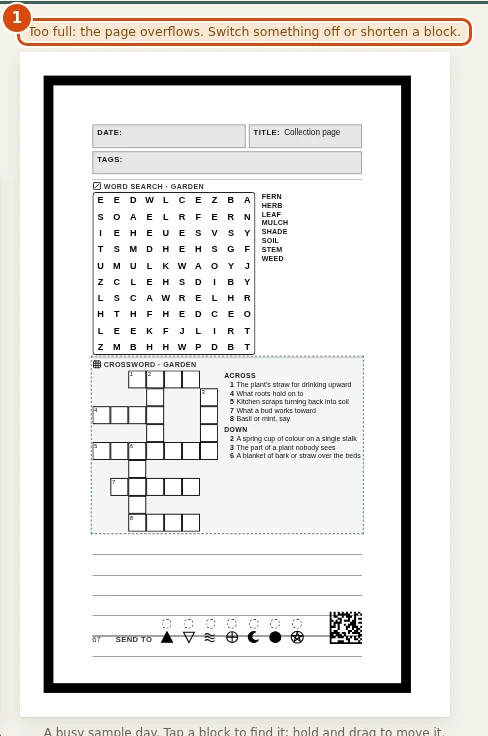
- Too full. The page overflows: something does not fit. Switch a block off, shorten it, or make a puzzle smaller.
- Switch the block you can live without off with its switch (it keeps its settings), or remove it.
- Or shorten a block: fewer lines, a smaller grid, fewer rows.
- In Grid mode, if you add a block with no room, the editor says "No room for NAME: added switched off. Free some rows, then switch it on."
The print build checks every page again. node check.mjs m2026-10 prints a list and a count. [] 0 means every page fits. Anything else names pages, and the build stops (CI fails). Each entry looks like {"n":41,"over":true,"out":2}:
n: the page number, counting from 1 at the front.over: the page content spills past the page.out: how many elements sit outside the margins.cell: bus grid or summary cells whose text is wider than the column.clip: month-calendar cells or week rows that clip their text.blk: the names of Grid blocks that clip their content, for example"blk":["checks"]. That is the block to shorten or move.scan: parts of the scan strip overlap or spill, for example after a bigger page code.
A busy calendar does not overflow a page by itself: month cells and week rows cap at a few lines and say "+N more".
The X4 has room for 16 custom check-in items. Past that the editor says "X4 holds 16 custom items; you have N. The last M stay on paper."
The 110-page limit
The Pages panel in the Book view counts the pages and checks them against KDP: 24 to 110 pages for a paperback, 76 or more for a hardcover in this tool. Past the limit it says so in red, with the volume plan.
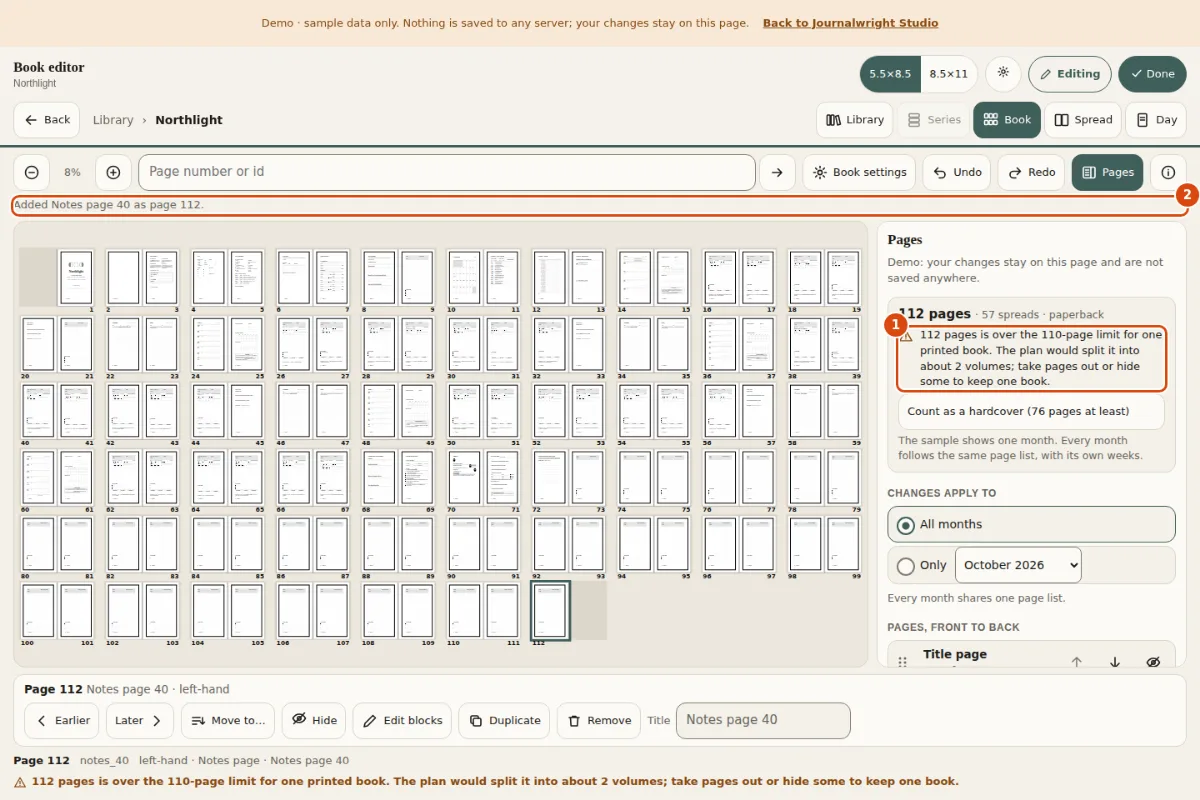
- Over the limit. Says how many pages the book has, that 110 is the most for one printed book, and into how many volumes the plan would split it.
- What just happened. The last change, in words, for example "Added Notes page 40 as page 112".
- Over: "112 pages is over the 110-page limit for one printed book. The plan would split it into about 2 volumes; take pages out or hide some to keep one book." Hide pages with the eye, remove pages you added, or let it split:
node render.mjs plan private/main.icsshows how many volumes you get, and each volume is its own KDP upload. - Under: "N pages is under the 24-page minimum for a paperback." (76 for a hardcover). The build pads with Notes pages by itself so the count is even and reaches the minimum;
HARDCOVER=1pads to 76. - A spread day, extra Notes pages and the "Count as a hardcover" switch all change the count. The note under "This day covers" shows it as you go.
A page would point to nothing
Some pages say "see page N". Page numbers and those pointers follow the pages when they move. If a change would remove a page that another page points to, the editor stops and asks: A page would point to nothing, then "NAME points to NAME, which the book would no longer have." The build refuses such a book, so it cannot be saved or printed until you put that page back. Cancel keeps the book as it was, Apply anyway is for when you mean it, and Undo brings the page back at any time. If a book has already been saved this way, the editor says "Not saved: NAME points to NAME, which isn't in the book. Put it back, or undo." and the build says:
Page "Closing the month" points to page "support", which this book doesn't have. Put that page back or remove the pointer.In the current page set, a page prints a pointer only when its target exists, and Support, My safety plan and Closing the month cannot be hidden ("Support can be moved but not hidden"), so you should rarely meet this. It guards books you edit by hand and pages added later.
The editor does not load, or the canvas is empty
The editor loads its drag-and-drop helper (SortableJS 1.15.2) from cdnjs.cloudflare.com. If your browser cannot reach it, because you are offline or the address is blocked, the page shows its top bar and then nothing is drawn: the Book canvas stays empty and the editor says nothing. Only the browser console says Sortable is not defined. Your saved work is untouched, because the editor never opened it. Get online (or allow that address) and reload. The editor does not carry its own copy yet. The project's own screenshot scripts take a local copy through SORTABLE_JS, and that is for testing, not for using the editor.

- Jump box. A page number is only accepted inside the book.
- Message. Says what is wrong and what the range is. Nothing moved.
A jump to a page that is not there is refused in words, as above, and nothing moves.
Common messages
- "This browser can't keep your library (its storage is blocked)" or "This browser can't keep versions": a private window or a privacy setting blocks storage. The editor still works for this visit. Use Export and Download to keep a copy.
- "Demo: not saved anywhere": you are in the public demo. Nothing is saved. Open your own copy (chapter 1).
- "That file isn't a day page layout.": Import was given a file that is not a
daypage.json. "Couldn't copy here. Use Download instead.": the browser would not give the editor the clipboard. - "Couldn't reach GitHub." or "Couldn't save. Try again in a moment": the working editor could not commit. Check your connection and your token.
- "Not autosaved: ..." in the Versions drawer: the draft could not be saved to the Studio server; the reason follows.
- "NAME is not a valid profile", with a list:
content/profile.jsonhas a wrong field, for exampletrim: is required: "small" (5.5x8.5) or "letter" (8.5x11), got "a5". Each line names the field and what it needs. - "Not printing the Support pages of pack NAME: N items have no verification note": give each item a
verifiednote (chapter 3).node packs-cli.mjs check NAMEfinds it earlier. - "support.json: changed since it was sealed": a pack file changed after
seal. Check the change, then runnode packs-cli.mjs seal NAME. - "No pack ... Installed packs: ...": the id or folder you named has no
pack.json. For a folder, give the whole path. - "KW_BOOK ... is not a book in the library": the book id is not in
content/library.json; the message lists the ids that are. - "Not overwriting ..." from
npm run init: a profile is already there. Use--profilefor another file or--forceto replace it.
Still stuck? Open an issue on GitHub with the exact message and what you pressed. Do not paste your calendar, profile or support numbers into an issue.
Where next
- Docs: the methods library behind every block.
- journal/README.md: every setting and every output file.
- Something in this guide is wrong or out of date? Tell us on GitHub. The pictures are regenerated from the editor by a script, so they follow it, and a change to a button the guide points at fails the build until the guide is updated.